使用教程User Guide

Xesim 新手使用教程Xesim Starter Guide

从收到 Xesim 卡到用上第一张 eSIM,跟着本教程操作,全程大约需要 10–15 分钟。选择你的卡片版本和手机类型,即可查看对应的操作步骤。Going from a new Xesim card to your first working eSIM takes about 10–15 minutes with this guide. Pick your card version and phone type to see the steps that apply to you.

2026 年 09 版Edition 2026.09 适用 X1 / X2 / X2ProFor X1 / X2 / X2 Pro iPhone / Android / 华为鸿蒙Huawei HarmonyOS

收到的是 X7 蓝牙 eSIM 卡?Got an X7 Bluetooth eSIM Adapter?

X7 通过 Xesim App 蓝牙管理,iPhone / Android / 鸿蒙操作一致,步骤与本页 X1 / X2 / X2 Pro 教程不同,请直接查看 X7 专属教程。X7 is managed in the Xesim app over Bluetooth. The steps are the same on iPhone, Android and HarmonyOS, and differ from the X1 / X2 / X2 Pro guide on this page — please use the X7 guide instead.

查看 X7 使用教程Open the X7 guide →
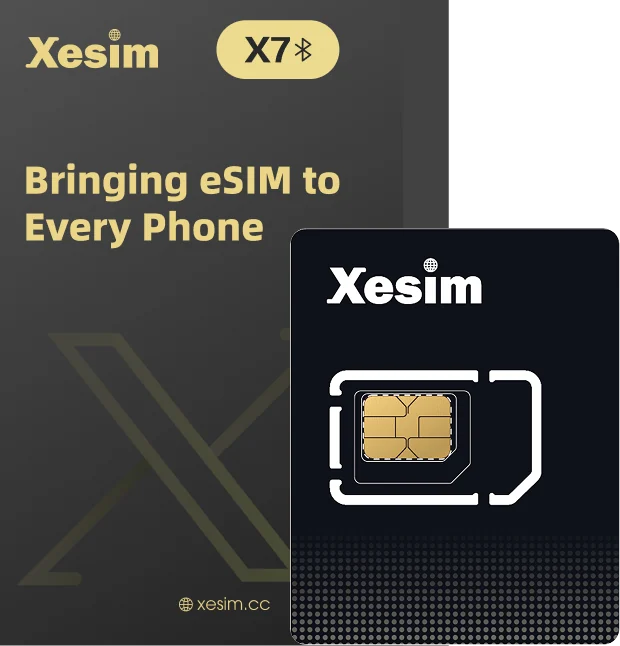
Xesim X7
或直达 X7 教程章节:Or jump to an X7 section:

先认识一下 XesimMeet Xesim

Xesim 卡是一张基础能力卡,插入手机后让你的手机具备 eSIM 能力。A Xesim card is a foundation card: insert it into your phone and your phone gains eSIM capability.

Xesim 卡出厂时为空卡,不含 eSIM 套餐Xesim cards ship empty — no eSIM plan included
eSIM 套餐分为纯数据流量套餐和带号码套餐(可收短信 / 接码)eSIM plans come as data-only plans or plans with a phone number (can receive SMS / verification codes)
你需要自行购买 eSIM 套餐并下载到卡里使用You buy the eSIM plan yourself and download it to the card
购买后 eSIM 供应商会提供 eSIM 二维码 / 激活码(LPA 开头的字符串)After purchase, the eSIM provider gives you an eSIM QR code / activation code (a string starting with LPA)
第一步Step 1

找到适合你的教程Find your guide

先选卡片,再选手机,我们帮你定位到正确的操作指南。Pick your card, then your phone — we'll point you to the right steps.

你的 Xesim 卡片?Which Xesim card do you have?
你的手机是哪种系统?Which phone do you use?
操作教程Guide

iPhone 手机操作教程iPhone guide

X7 蓝牙卡请看专属教程X7 adapter: see its own guide ↗ iPhone 用户iPhone users X2Pro 用户X2 Pro users X1 / X2 同样适用Also for X1 / X2
iPhone 的特别之处:X7 蓝牙卡支持通过 Xesim App 直接管理卡片及 eSIM,请看 X7 使用教程。X1 / X2 / X2 Pro 由于 iOS 系统限制,不能通过 App 直接管理,需要通过 Xesim STK(SIM 卡工具包)来操作,本页介绍的就是这种方式。Xesim STK 默认是英文,可进入 Xesim STK → Language 切换成中文或其他语言。 What's different on iPhone: the X7 Bluetooth eSIM Adapter lets you manage the card and its eSIMs directly in the Xesim app — see the X7 guide. For X1 / X2 / X2 Pro, iOS doesn't let apps manage the card directly, so you use Xesim STK (SIM Toolkit) instead — that's what this guide covers. Xesim STK is in English by default; you can change its language under Xesim STK → Language.

下载 eSIM 前的关键准备Before every eSIM download

每次下载新 eSIM 前,必须做好以下准备:Each time you download a new eSIM, get these ready first:

  1. 启用 SeedLink(Xesim 卡的联网通道),或启用一张有数据流量的 eSIMEnable SeedLink (the Xesim card's connection channel), or enable an eSIM that has data
  2. 打开手机的数据漫游开关Turn on Data Roaming on your phone
  3. 关掉科学上网工具和 VPN 代理Turn off any VPN or proxy tools

1安装 Xesim App(辅助工具)Install the Xesim app (helper tool)

X7 蓝牙卡可在 Xesim App 中直接管理卡片及 eSIM。对 X1 / X2 / X2 Pro 而言,iOS 版 Xesim App 不能直接管理卡片,只起辅助作用。它可以:The X7 Bluetooth eSIM Adapter is managed directly in the Xesim app, card and eSIMs alike. For X1 / X2 / X2 Pro, the iOS app can't manage the card directly and works as a helper. It can:

  • 扫描 eSIM 二维码,复制 eSIM 激活码(LPA 开头的字符串)Scan an eSIM QR code and copy its activation code (the string starting with LPA)
  • 为支持简易下载的 X2Pro 生成简易下载码Generate Easy Download codes for X2 Pro cards that support Easy Download
  • 查看 SeedLink 有效期并续期Check and renew your SeedLink validity
  • 购买 Xesim App 上推出的精选套餐Buy featured plans offered in the Xesim app
  • 参与积分和福利活动Join points and rewards campaigns

2绑定 Xesim 卡Bind your Xesim card

绑定方式共有 3 种,按你的产品版本选择:There are 3 ways to bind. Choose by product version:

  • 短信验证码绑定(X2Pro 优先):Xesim 官方会给 X2Pro 卡发送绑定验证码SMS verification code (X2 Pro, preferred): Xesim sends a binding code to your X2 Pro card
  • 官网订单信息绑定(X1 / X2):使用购买时的官网订单信息完成绑定Official-site order details (X1 / X2): bind using the order details from your purchase
  • App 绑定码绑定(X1 / X2):使用 Android App 上的绑定码完成绑定App binding code (X1 / X2): bind using the binding code shown in the Android app

3识别并复制 eSIM 激活码Scan and copy the eSIM activation code

  1. 打开 Xesim App,点击首页右上角的扫码图标Open the Xesim app and tap the scan icon at the top right of the home screen
  2. 扫描 eSIM 二维码(或从相册选择图片识别)Scan the eSIM QR code (or pick an image from your photos)
  3. App 会自动识别出 eSIM 激活码(LPA 开头的一串字符)The app reads the eSIM activation code (a string starting with LPA)
  4. 复制激活码备用,或选择生成简易下载码(见下文)Copy the code for later, or generate an Easy Download code (see below)
eSIM 套餐需自行购买。购买后,eSIM 供应商会提供 eSIM 二维码或激活码。eSIM plans are bought separately. After purchase, the eSIM provider gives you an eSIM QR code or activation code.

4通过 Xesim STK 下载 eSIMDownload an eSIM with Xesim STK

所有版本都支持标准下载功能,部分版本同时支持简易下载功能。All versions support Standard Download; some versions also support Easy Download.

  1. 启用 SeedLink:进入 Xesim STK → 启用 SeedLink,同时打开数据漫游开关Enable SeedLink: in Xesim STK, enable SeedLink, and turn on Data Roaming
  2. 复制激活码:从 Xesim App 中复制已识别出来的激活码(LPA 开头的字符串)Copy the activation code: copy the code the Xesim app read (the string starting with LPA)
  3. 下载 eSIM:进入 Xesim STK → 下载 eSIM,粘贴激活码;如有确认码则一并输入;在下载提示页面点「接受」Download the eSIM: go to Xesim STK → Download eSIM and paste the code; enter the confirmation code if there is one; tap “Accept” on the download prompt
  4. 启用 eSIM:下载完成后,进入 eSIM 列表,找到新下载的 eSIM,点击启用Enable the eSIM: when it's done, open the eSIM list, find the new eSIM and enable it
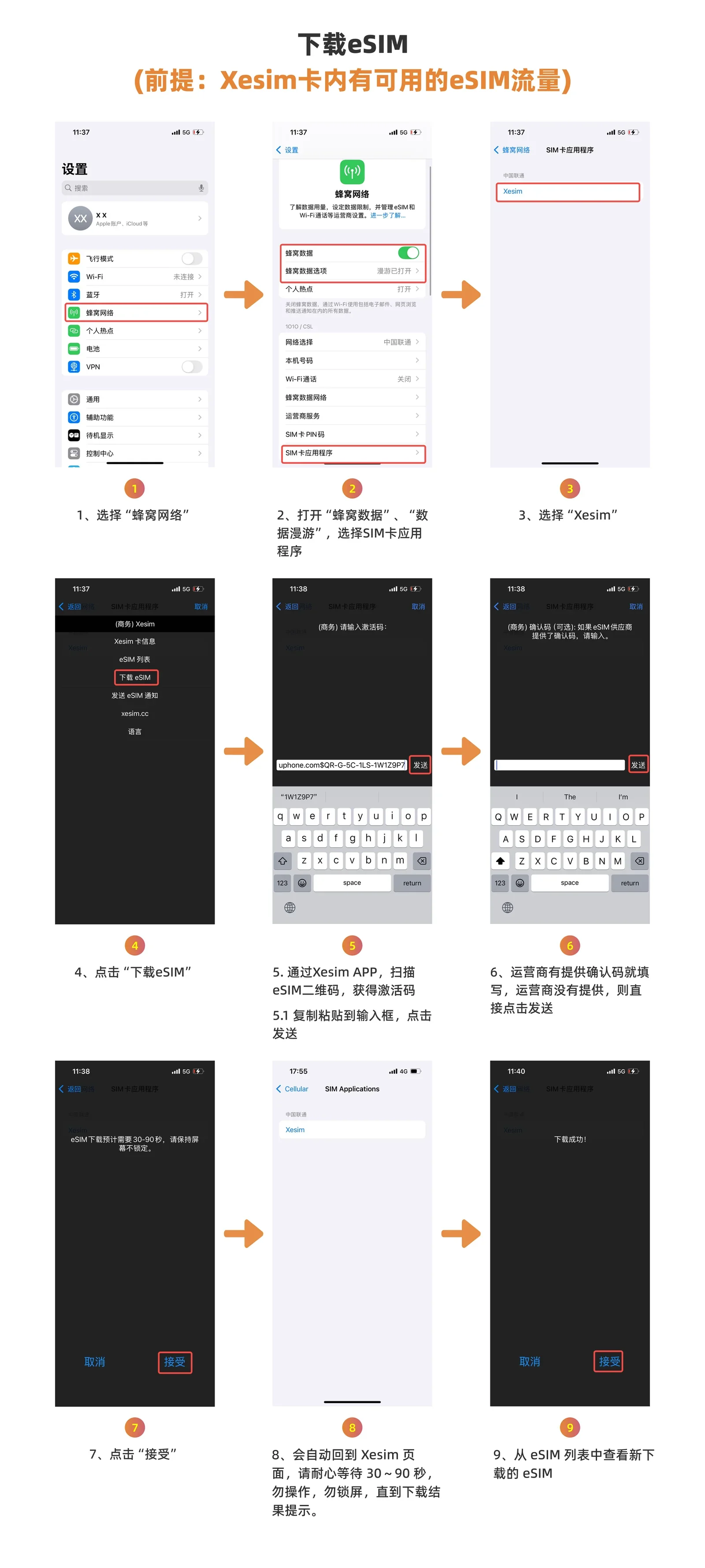
等待下载完成约 30–90 秒:期间请勿锁屏、请勿做任何操作,耐心等待下载结果提示。The download takes about 30–90 seconds: don't lock the screen or touch anything — wait for the result message.
iPhone 通过 Xesim STK 标准下载 eSIM 的 12 步截图
标准下载全流程(12 步):设置 → 蜂窝网络 → SIM 卡应用程序 → Xesim → 下载 eSIMStandard Download, full flow (12 steps): Settings → Cellular → SIM Applications → Xesim → Download eSIM
  1. 启用 SeedLink,打开数据漫游开关Enable SeedLink and turn on Data Roaming
  2. 在 Xesim App 中扫描 eSIM 二维码,选择「简易下载」In the Xesim app, scan the eSIM QR code and choose “Easy Download”
  3. 得到一串 4–10 位纯数字的简易下载码You'll get a 4–10 digit Easy Download code
  4. 进入 Xesim STK → 简易下载 eSIMGo to Xesim STK → Easy Download eSIM
  5. 输入简易下载码Enter the Easy Download code
  6. 点「接受」后耐心等待下载完成Tap “Accept” and wait for the download to finish
  7. 下载成功后,从 eSIM 列表中启用新 eSIMOnce it succeeds, enable the new eSIM from the eSIM list
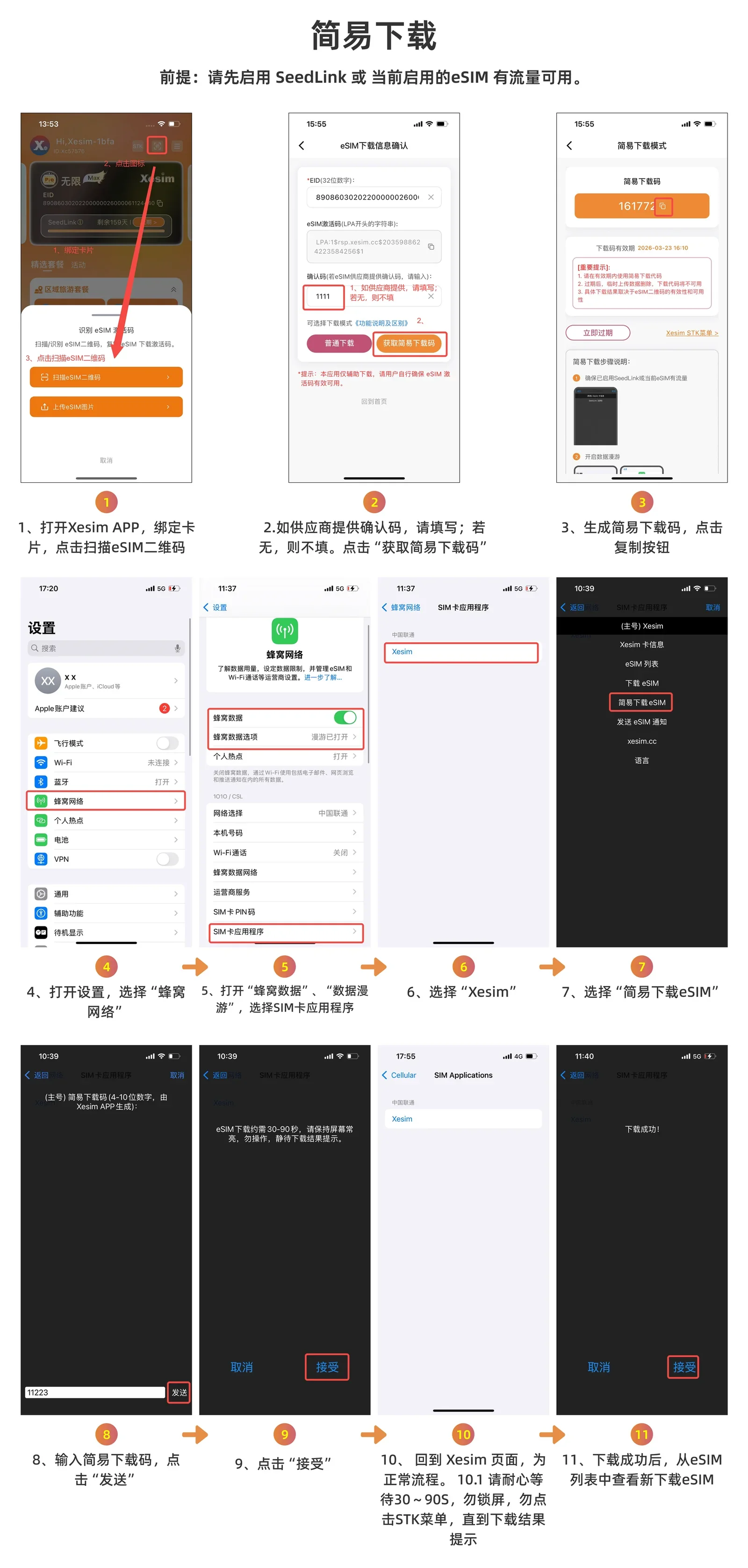
X2Pro 简易下载 eSIM 的 11 步截图
简易下载全流程(11 步):Xesim App 生成简易下载码 → Xesim STK 输入下载Easy Download, full flow (11 steps): get the code in the Xesim app → enter it in Xesim STK
关于确认码:大多数 eSIM 套餐下载不需要确认码。但如果 eSIM 供应商提供了确认码,就必须输入正确的确认码才能下载成功。常见需要确认码的 eSIM:德国 Vodafone、荷兰 Vodafone 等,有的将其称为 ePIN。 About confirmation codes: most eSIM plans don't need one. But if your eSIM provider gives you a confirmation code, you must enter it correctly for the download to succeed. eSIMs that often need one include Vodafone Germany and Vodafone Netherlands; some providers call it an ePIN.
重要警告:如果 eSIM 供应商提供了确认码,但下载时没有输入或输错了确认码,会被认为是非法下载。尝试 3 次后,eSIM 会被供应商锁定,不再允许下载!输入确认码时一定仔细核对。 Important: if your provider gave you a confirmation code and you leave it out or enter it wrongly, the download is treated as unauthorised. After 3 attempts, the provider locks the eSIM and it can't be downloaded any more! Double-check the code before entering it.

下载失败?先确认二维码 / 激活码有效可用(从未被下载过、在有效期内),再查看 常见错误及解决方法。Download failed? First make sure the QR / activation code is valid (never downloaded before, not expired), then see common errors and fixes.

eSIM 的日常管理Everyday eSIM management

以下操作都在 设置 → 蜂窝网络 → SIM 卡应用程序 → Xesim 中完成,点击展开查看图文步骤。All of these are done in Settings → Cellular → SIM Applications → Xesim. Tap a topic to see the illustrated steps.

启用 / 切换 eSIMEnable / switch eSIMs7 步7 steps▸

从 eSIM 列表中选择要使用的 eSIM,点击「启用 eSIM」,再点「接受」即可。In the eSIM list, pick the eSIM you want to use, tap “Enable eSIM”, then tap “Accept”.
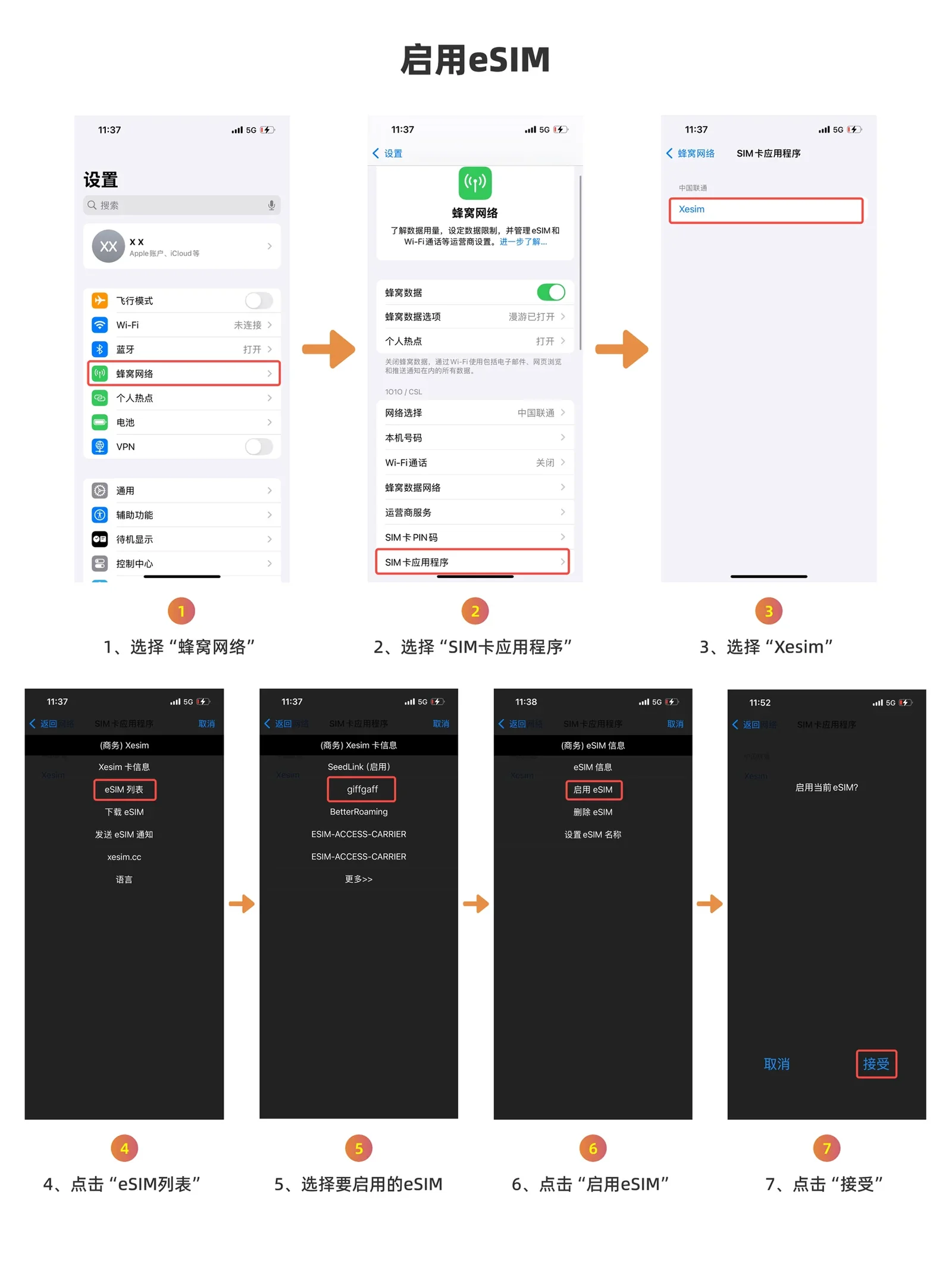
iPhone 启用 eSIM 的 7 步截图
启用 eSIM:eSIM 列表 → 选择 eSIM → 启用 eSIM → 接受Enable eSIM: eSIM list → pick the eSIM → Enable eSIM → Accept
禁用 eSIMDisable an eSIM7 步7 steps▸

从 eSIM 列表中选择要禁用的 eSIM,点击「禁用 eSIM」,再点「接受」。In the eSIM list, pick the eSIM to disable, tap “Disable eSIM”, then tap “Accept”.
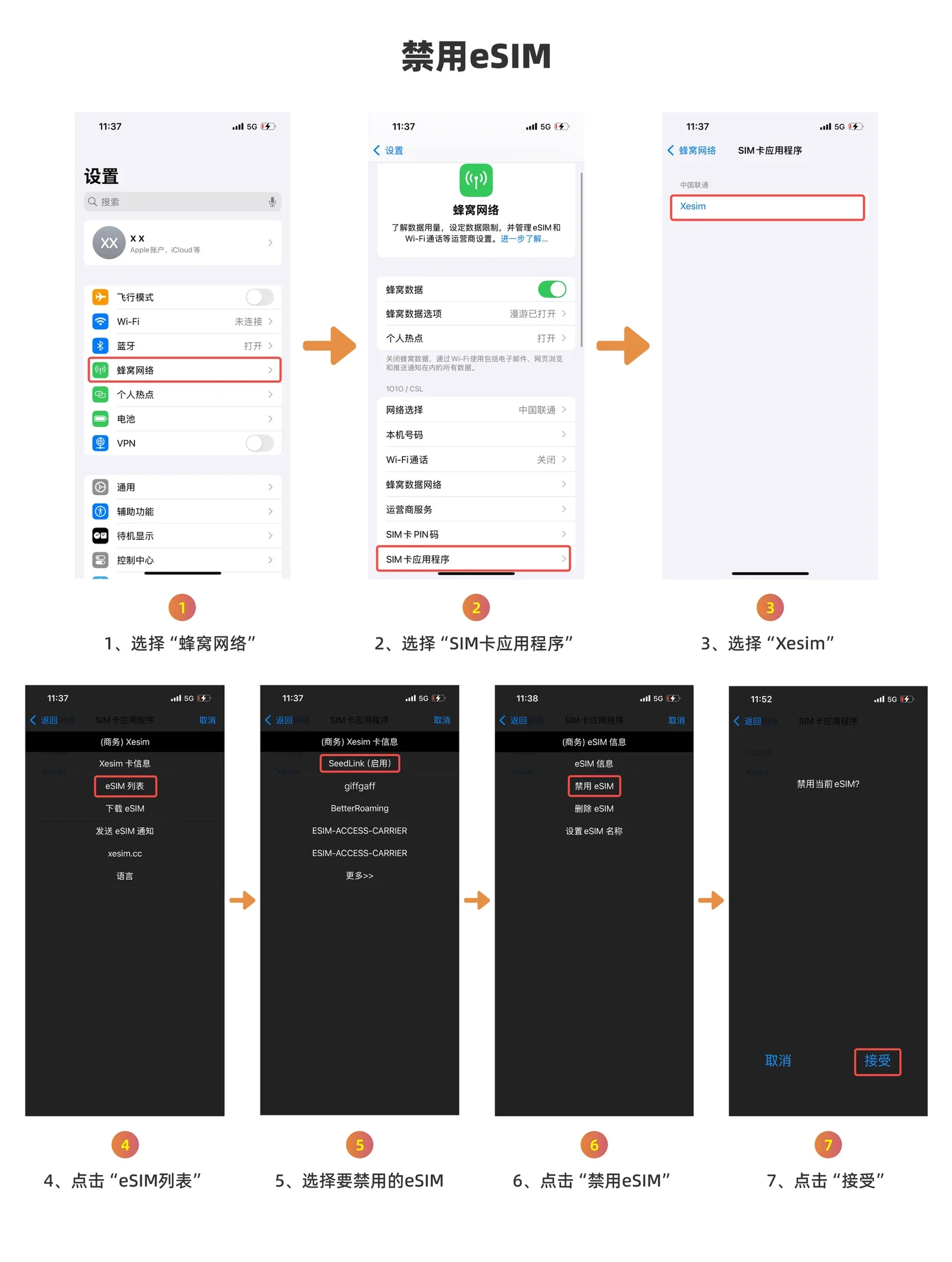
iPhone 禁用 eSIM 的 7 步截图
禁用 eSIM:eSIM 列表 → 选择 eSIM → 禁用 eSIM → 接受Disable eSIM: eSIM list → pick the eSIM → Disable eSIM → Accept
查看 eSIMView your eSIMs4 步4 steps▸

进入 eSIM 列表即可查看卡内已下载的全部 eSIM。Open the eSIM list to see every eSIM downloaded to the card.
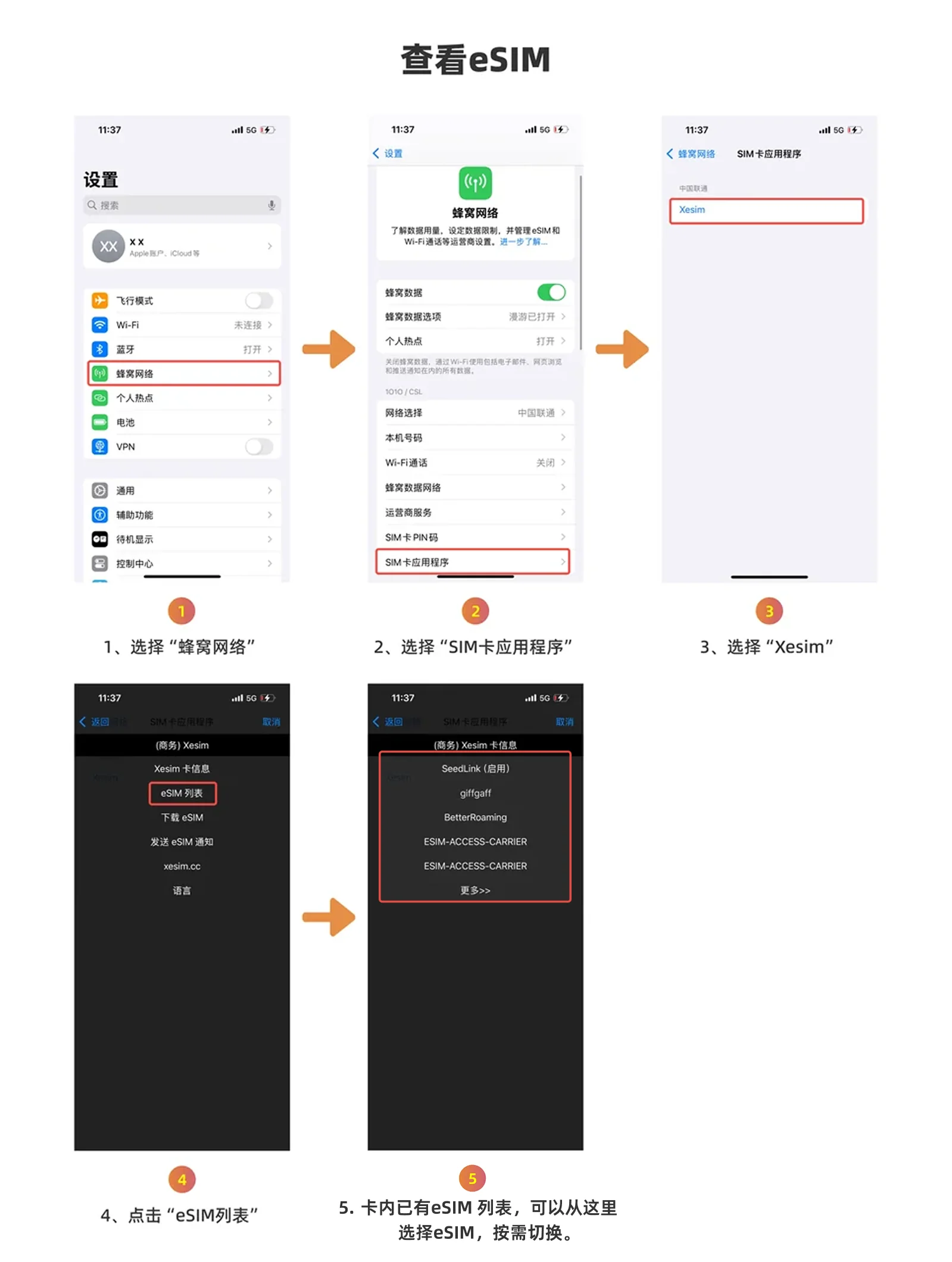
iPhone 查看 eSIM 列表的 4 步截图
查看 eSIM:设置 → 蜂窝网络 → SIM 卡应用程序 → Xesim → eSIM 列表View eSIMs: Settings → Cellular → SIM Applications → Xesim → eSIM list
查看卡片 EIDFind the card's EID4 步4 steps▸

需要向客服或 eSIM 供应商提供卡片信息时,按以下步骤查看卡片 EID 和已启用 eSIM 的 ICCID。When support or your eSIM provider asks for your card details, follow these steps to see the card's EID and the ICCID of the enabled eSIM.
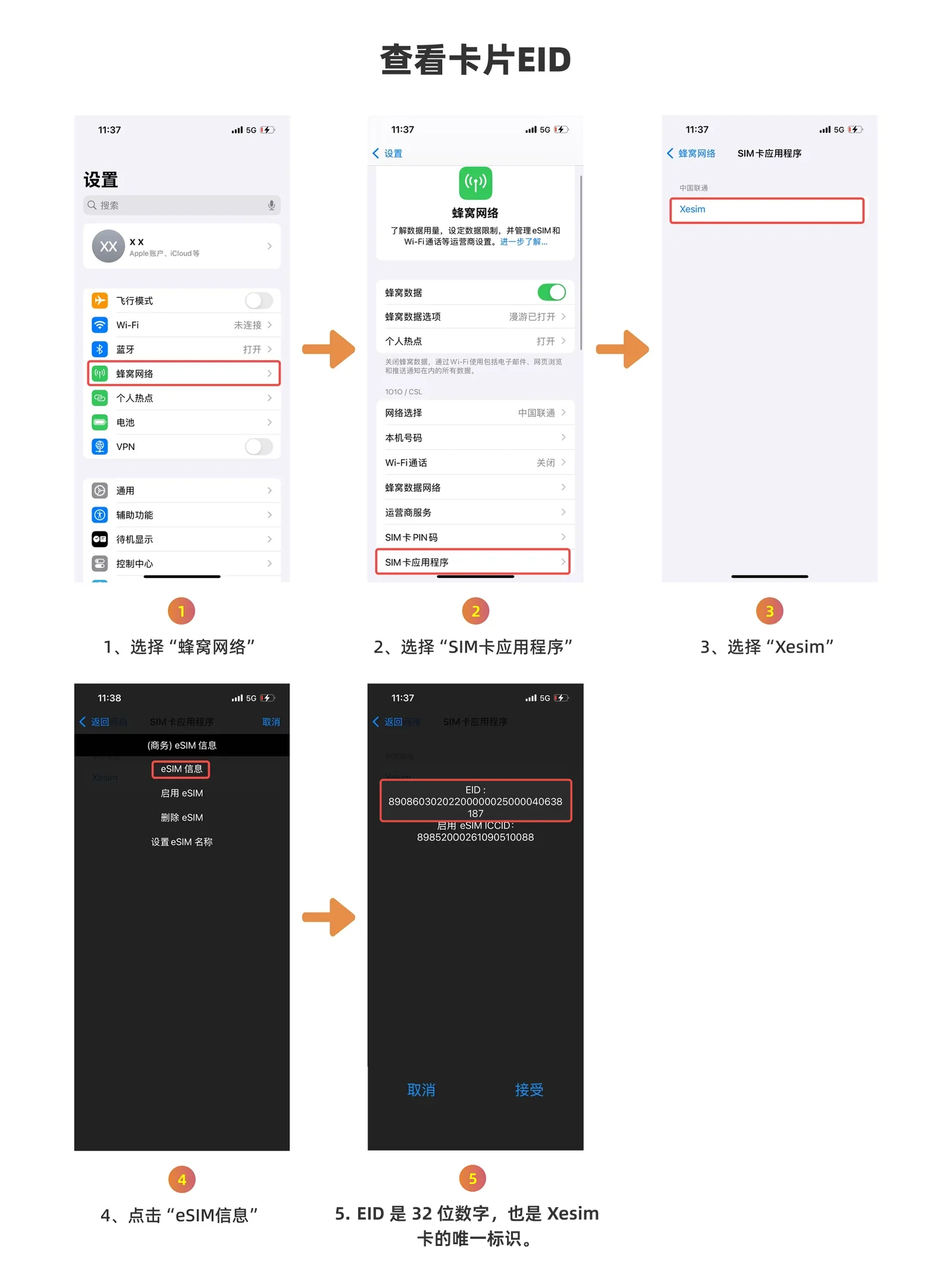
iPhone 查看 Xesim 卡片 EID 的 4 步截图
查看卡片 EID:设置 → 蜂窝网络 → SIM 卡应用程序 → Xesim → eSIM 信息Find the EID: Settings → Cellular → SIM Applications → Xesim → eSIM info
删除 eSIM(慎重操作)Delete an eSIM (be careful)7 步7 steps▸
大部分供应商的 eSIM 二维码只能下载一次,一旦删除无法再次下载。确认不再使用后再删除。 With most providers, an eSIM QR code can be downloaded only once — once deleted, it can't be downloaded again. Only delete eSIMs you're sure you won't use.
  • 纯数据流量 eSIM:流量用完或套餐过期后,确认不再使用,可以删除Data-only eSIMs: can be deleted once the data is used up or the plan has expired and you no longer need it
  • 带号码 eSIM:确认不再需要接码服务后再删除eSIMs with a phone number: delete only when you no longer need to receive verification codes
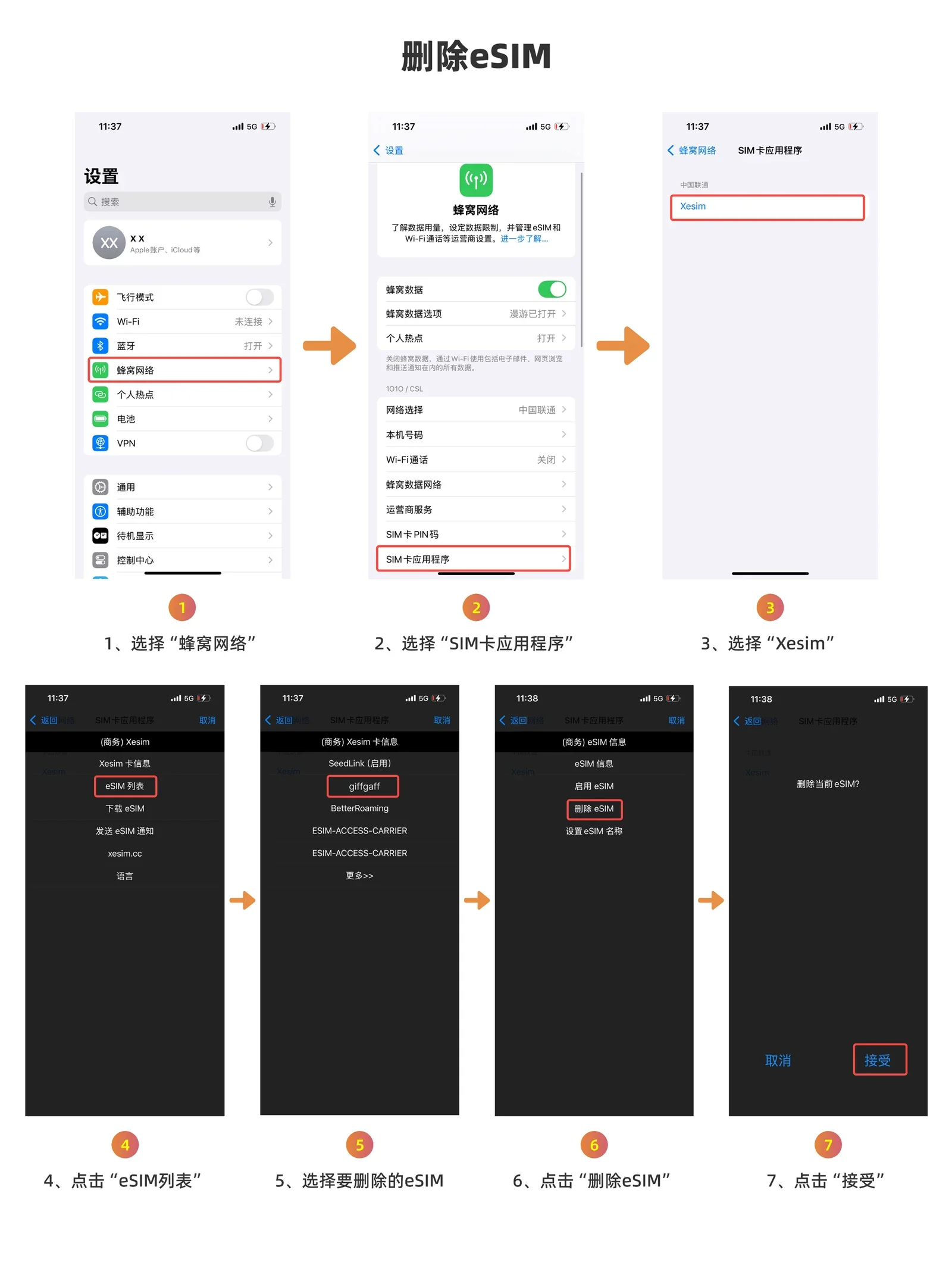
iPhone 删除 eSIM 的 7 步截图
删除 eSIM:eSIM 列表 → 选择 eSIM → 删除 eSIM → 接受Delete eSIM: eSIM list → pick the eSIM → Delete eSIM → Accept
备注 eSIM(设置名称)Name an eSIM6 步6 steps▸

同一供应商的多个 eSIM 名字可能一样,不好区分。建议用备注功能给每个 eSIM 取个自己能记住的名字(支持字母和数字),方便管理。Several eSIMs from the same provider may share a name, which makes them hard to tell apart. Give each one a name you'll recognise (letters and numbers supported).
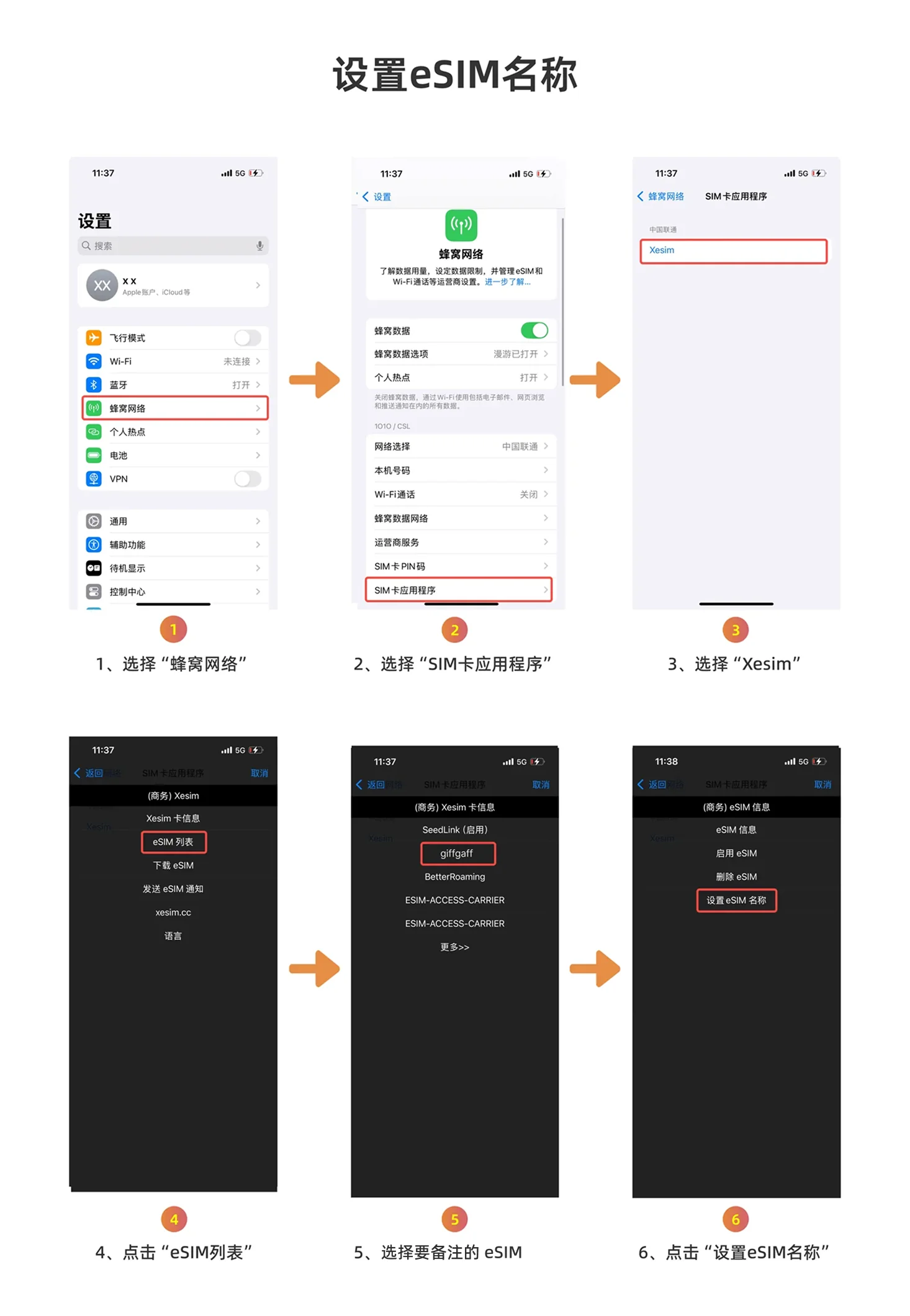
iPhone 设置 eSIM 名称的 6 步截图
备注 eSIM:eSIM 列表 → 选择 eSIM → 设置 eSIM 名称Name an eSIM: eSIM list → pick the eSIM → Set eSIM Name
数据漫游开关说明:使用 eSIM 数据流量 → 需要打开手机数据漫游开关;用于收短信 / 接码的 eSIM → 不需要打开数据漫游开关(一旦打开可能产生高额数据漫游流量费用)。 About Data Roaming: to use an eSIM's mobile data → turn Data Roaming on; for eSIMs used only to receive SMS / verification codes → leave Data Roaming off (turning it on may lead to high roaming charges).
SeedLink 切记不要删除!删除后将无法再使用 SeedLink 服务。如果误删了 SeedLink,需要联系客服付费 3 美元重新开通。 Never delete SeedLink! Once deleted, the SeedLink service can no longer be used. If you delete it by mistake, contact support to reactivate it for a fee of US$3.

5权益:XPT 积分Rewards: XPT points

通过使用产品、参与活动或邀请好友等方式获取 XPT,积分可用于抵扣消费或兑换专属权益。Earn XPT by using the product, joining campaigns or inviting friends, then use it to pay towards purchases or redeem exclusive perks.

  • 分享专属折扣码:好友官网下单立减 5%,你可获得 XPTShare your discount code: friends get 5% off on the official site, and you earn XPT
  • 使用 XPT 抵扣:X1 下载次数、X2Pro SeedLink 续期、App 内精选套餐(实际抵扣比例以 App 页面显示为准)Spend XPT on: X1 download credits, X2 Pro SeedLink renewal and featured plans in the app (the actual rate is shown in the app)
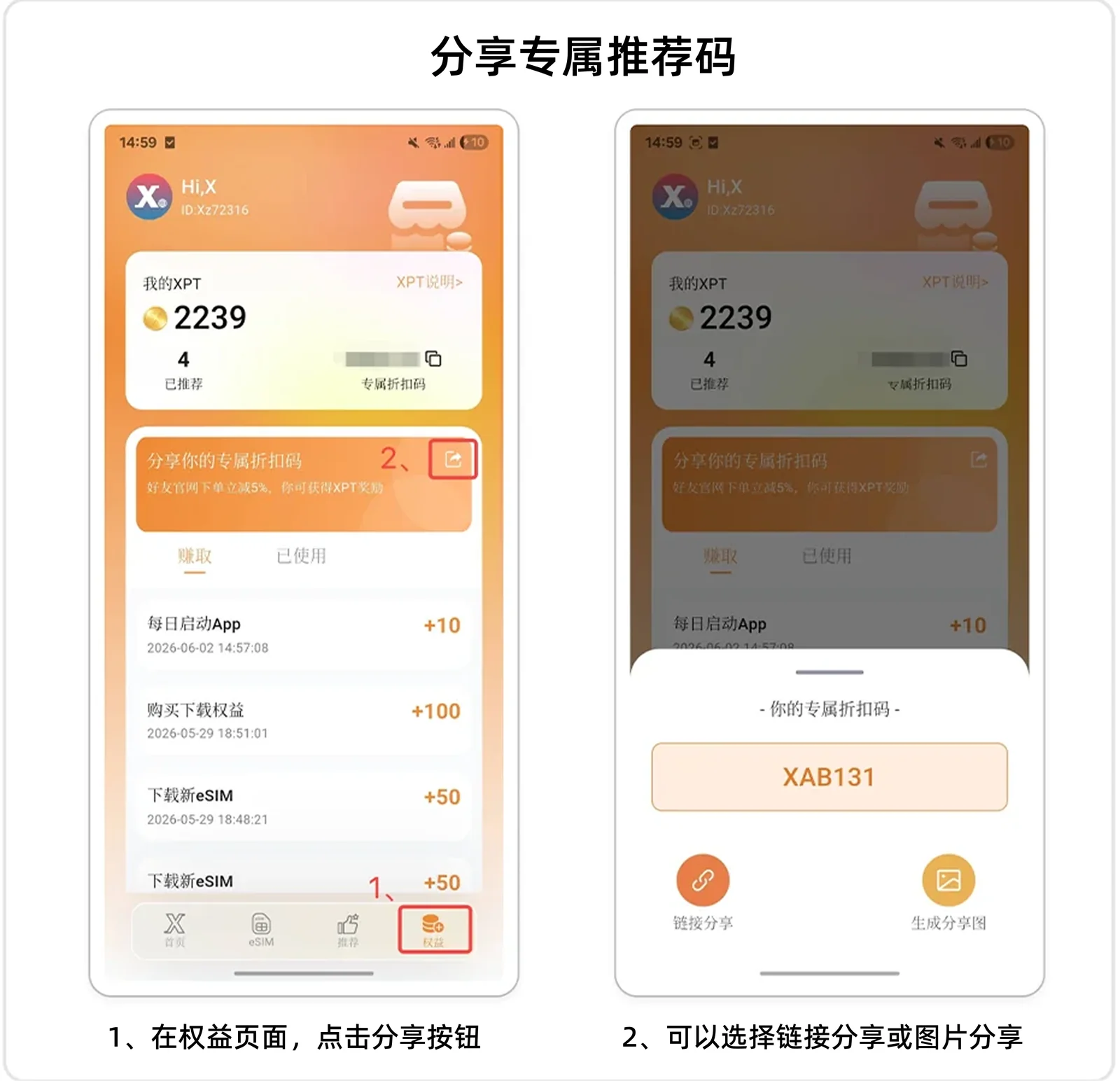
Xesim App 分享专属折扣码的操作截图
分享专属折扣码:App → 权益 → 分享按钮 → 链接分享或生成分享图Share your discount code: app → Rewards → Share button → share a link or create a share image
操作教程Guide

Android 手机操作教程Android guide

X7 蓝牙卡请看专属教程X7 adapter: see its own guide ↗ X1 / X2 用户X1 / X2 users Android 手机用户Android users 鸿蒙 OS 1.x ~ 4.x 用户HarmonyOS 1.x–4.x users
X7 蓝牙卡支持通过 Xesim App 直接管理卡片及 eSIM,请看 X7 使用教程。X1 / X2 / X2 Pro 在 Android 手机上同样推荐使用 Xesim App 管理,操作简单友好、方便快捷。产品兼容市面上绝大多数主流 Android 手机型号,但由于手机品牌、型号及系统版本众多,不排除个别机型可能出现不兼容的情况,手机是否支持,具体以 Xesim App 检测结果为准。 The X7 Bluetooth eSIM Adapter lets you manage the card and its eSIMs directly in the Xesim app — see the X7 guide. For X1 / X2 / X2 Pro on Android, we also recommend the Xesim app: simple, friendly and quick. It works with the vast majority of mainstream Android phones, but with so many brands, models and system versions, a few phones may not be compatible — the Xesim app's compatibility check has the final say.
如果你使用的是旧款旧型号 Android 机,Xesim App 无法识别卡,可以改用 Xesim STK 方式管理,参考本页最后的 STK 备用方案。 If you have an older Android phone and the Xesim app can't detect the card, manage it with Xesim STK instead — see the STK fallback at the end of this guide.

1下载安装 Xesim AppInstall the Xesim app

2下载 eSIMDownload an eSIM

  1. 插入 Xesim 卡,打开 App,在 eSIM 列表点击「+」,选择「扫码」,扫描 eSIM 二维码Insert the Xesim card, open the app, tap “Add eSIM +” in the eSIM list, choose “Scan” and scan the eSIM QR code
  2. 在 eSIM 预览界面确认信息,点击「下载」Check the details on the eSIM preview screen, then tap “Download”
  3. 下载成功后,可以给 eSIM 添加备注,完成后点击「保存」When the download succeeds, you can add a label, then tap “Save”
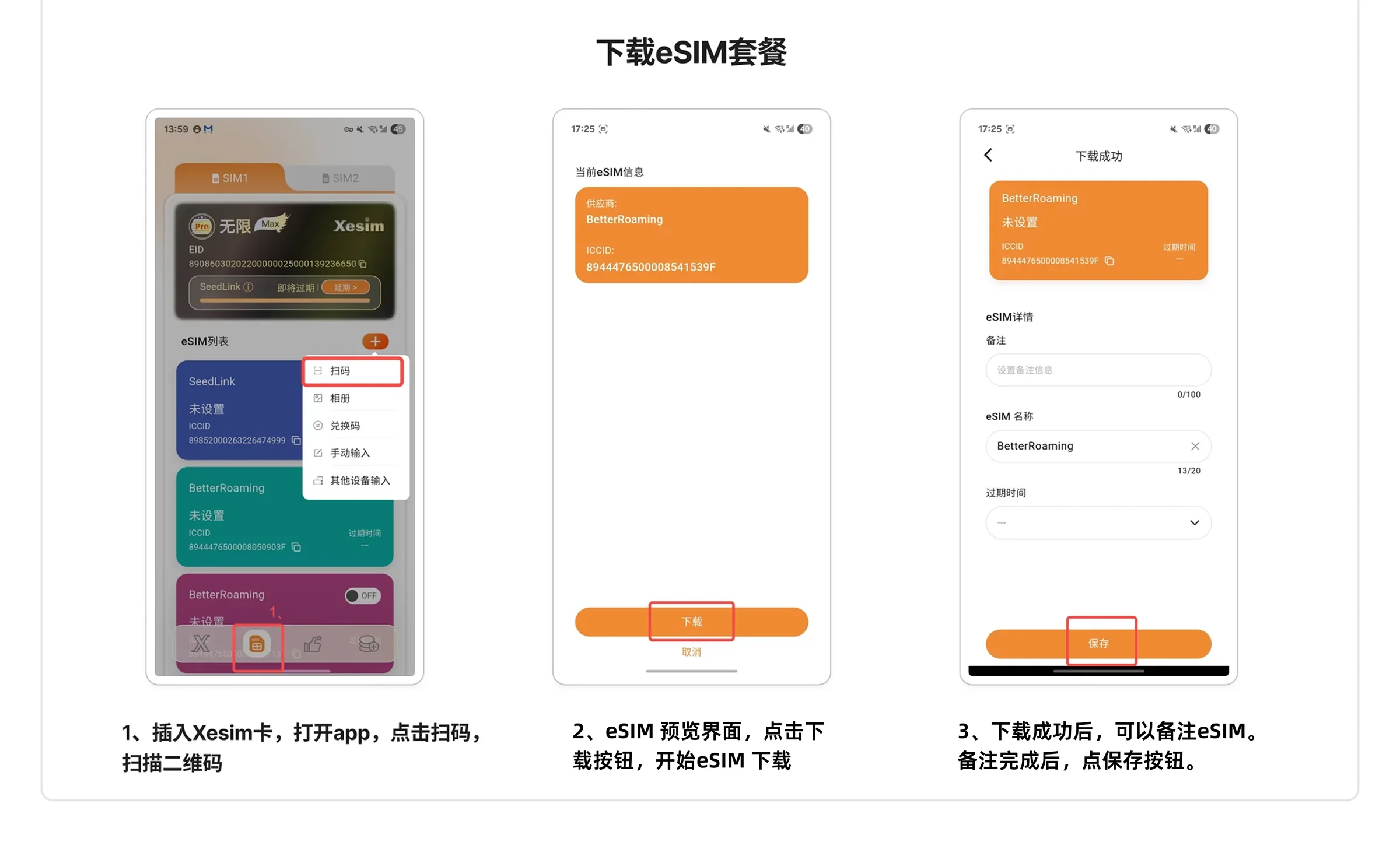
Android Xesim App 下载 eSIM 套餐的 3 步截图
App 内下载 eSIM:扫码 → 下载 → 备注并保存Download in the app: Scan → Download → label and Save

3编辑 / 删除 eSIMEdit / delete eSIMs

在 App 的 eSIM 列表中,点击 eSIM 卡片右侧的圆形「…」按钮,选择「编辑」修改备注,或选择「删除」删除 eSIM:In the app's eSIM list, tap the round “…” button on an eSIM card, then choose “Edit” to change its label or “Delete” to remove it:
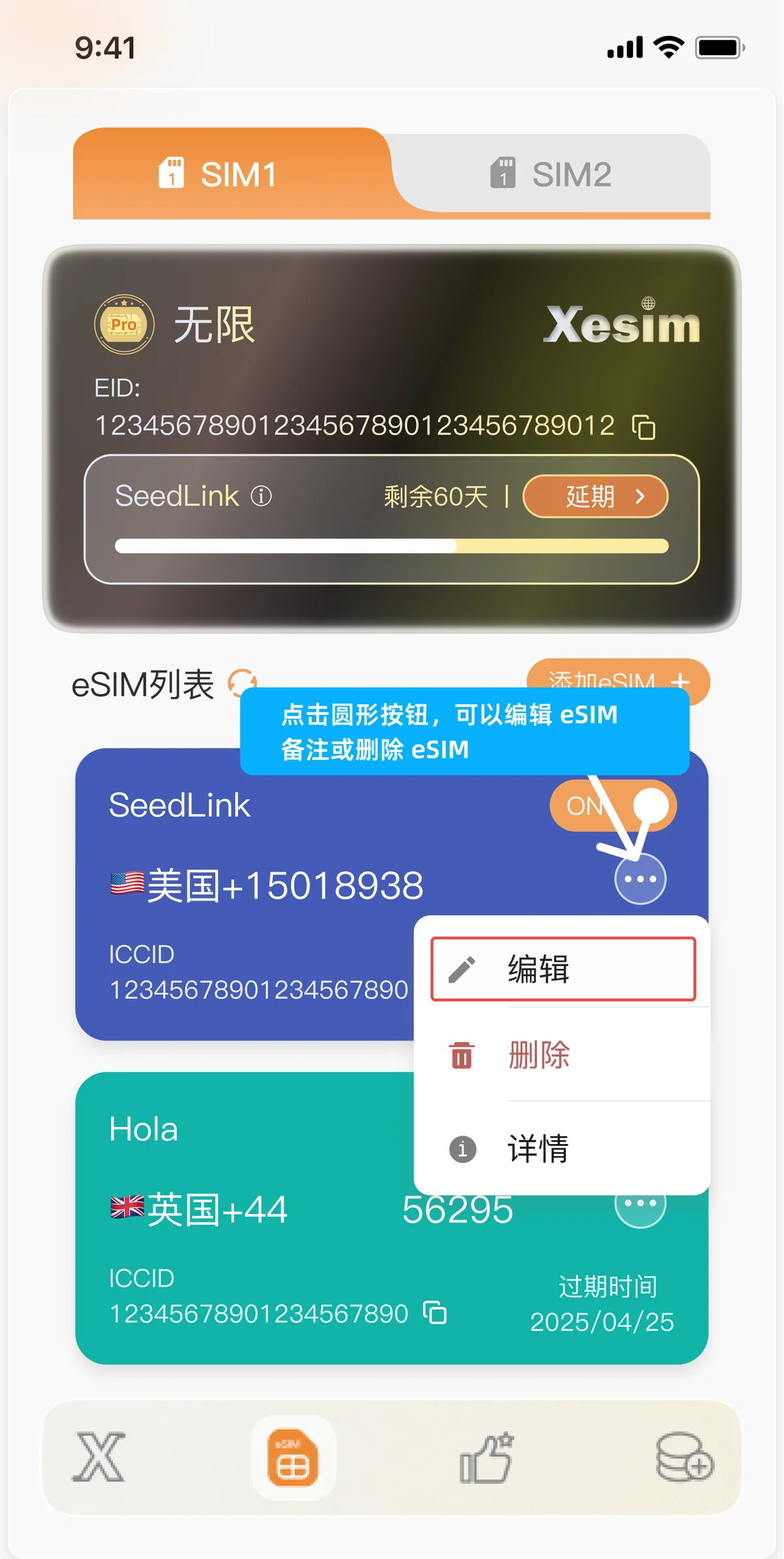
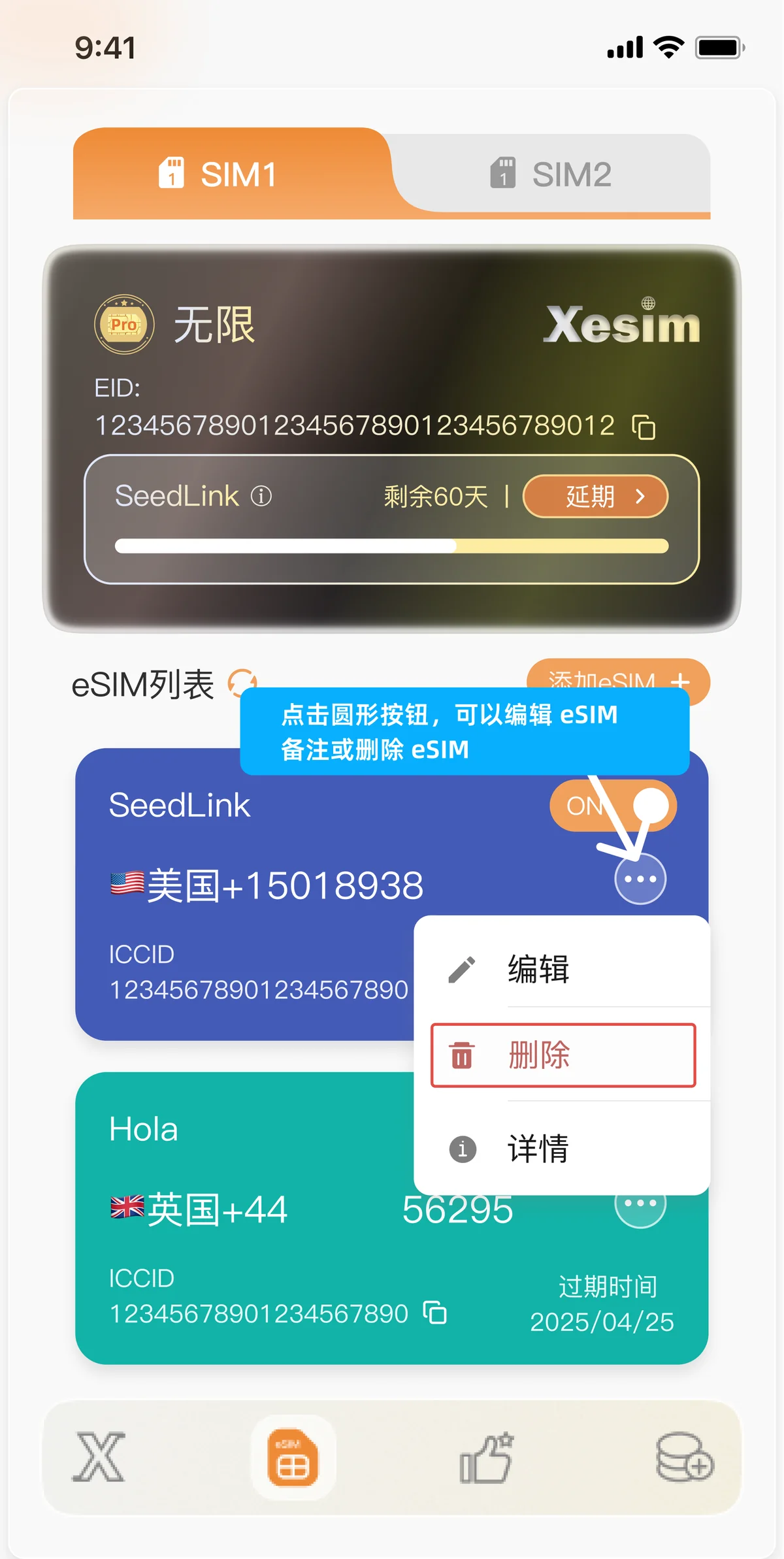
Android App 中点击圆形按钮编辑 eSIM 备注的截图
编辑备注:圆形按钮 → 编辑Edit the label: round button → Edit
Android App 中点击圆形按钮删除 eSIM 的截图
删除 eSIM:圆形按钮 → 删除Delete an eSIM: round button → Delete
删除前请确认:大部分供应商的 eSIM 二维码只能下载一次,删除后无法再次下载。同时切记不要删除 SeedLink。 Before you delete: with most providers, an eSIM QR code can be downloaded only once — once deleted, it can't be downloaded again. And never delete SeedLink.

4权益:XPT 积分Rewards: XPT points

与 iOS App 相同:分享专属折扣码(好友官网下单立减 5%,你可获得 XPT),XPT 可抵扣 X1 下载次数、X2Pro SeedLink 续期和 App 内精选套餐。详见 权益说明。Same as the iOS app: share your discount code (friends get 5% off on the official site and you earn XPT); spend XPT on X1 download credits, X2 Pro SeedLink renewal and featured plans in the app. See Rewards.

备用方案:Xesim STK(App 无法识别卡时)Fallback: Xesim STK (when the app can't detect the card)

适用于旧款旧型号 Android 机(Samsung、Huawei、Google、Vivo、Oppo、Honor 等品牌),当 Xesim App 无法识别卡时使用。先按下面的路径找到 Xesim STK 入口:For older Android phones (Samsung, Huawei, Google, vivo, OPPO, Honor and others) when the Xesim app can't detect the card. First find the Xesim STK entry using the paths below:

通用查找方法General method▸

桌面或工具文件夹 → SIM 卡应用 或 SIM 卡工具包。也可以在系统设置中搜索「SIM」快速定位。Home screen or Tools folder → SIM Applications or SIM Toolkit. You can also search “SIM” in Settings to find it quickly.

小米手机Xiaomi设置 → 移动网络Settings → Mobile networks▸

设置 → 移动网络 → 点击插入 Xesim 的卡槽 → USIM 卡应用Settings → Mobile networks → tap the slot with the Xesim card → USIM applications
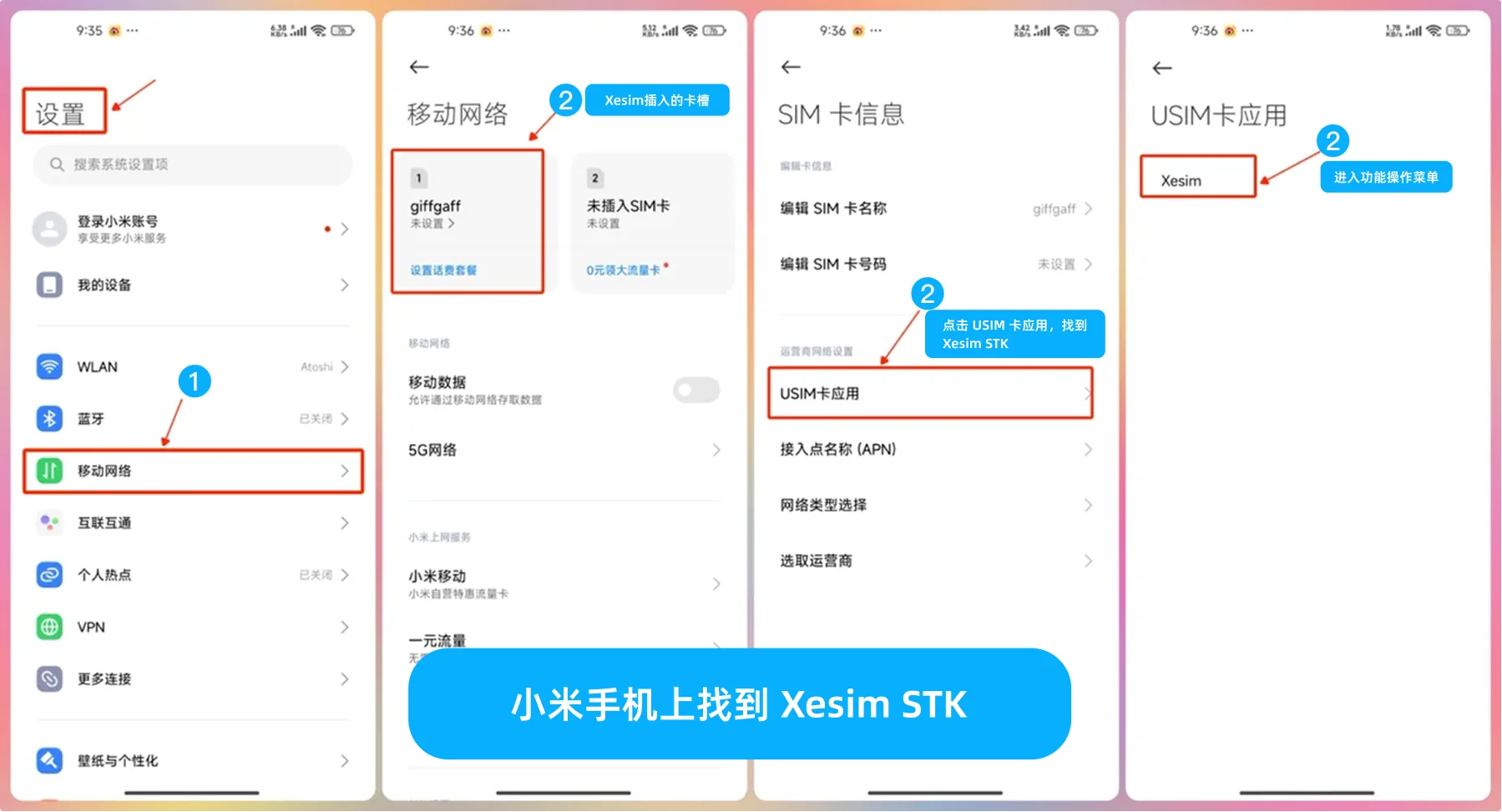
小米手机查找 Xesim STK 入口的 4 步截图
小米手机:设置 → 移动网络 → 卡槽 → USIM 卡应用 → XesimXiaomi: Settings → Mobile networks → SIM slot → USIM applications → Xesim
OPPO 手机OPPO设置 → 移动网络Settings → Mobile network▸

设置 → 移动网络 → 更多连接设置 → SIM 卡工具包Settings → Mobile network → More connection settings → SIM Toolkit
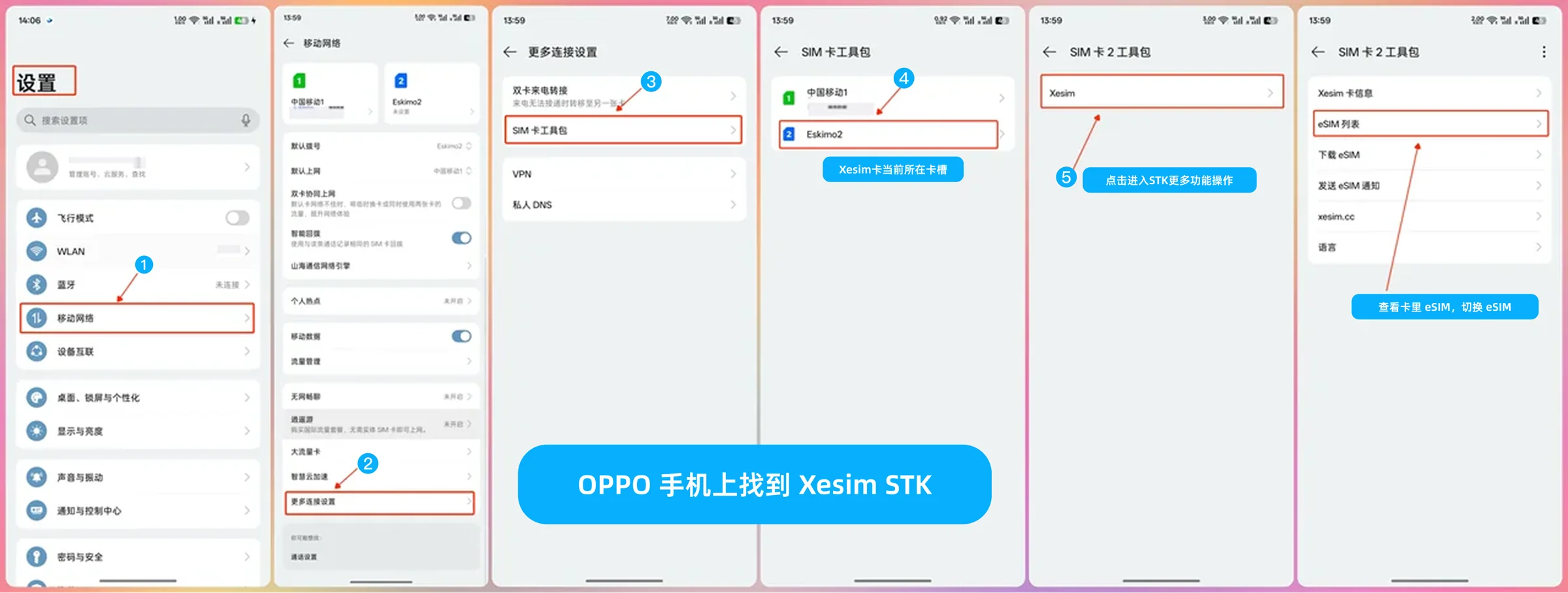
OPPO 手机查找 SIM 卡工具包的截图
OPPO 手机:设置 → 移动网络 → 更多连接设置 → SIM 卡工具包 → XesimOPPO: Settings → Mobile network → More connection settings → SIM Toolkit → Xesim
VIVO 手机vivo设置 → 应用Settings → Apps▸

设置 → 应用 → 系统应用设置 → 电话 → Xesim 所在卡槽 → SIM 卡应用(或在设置中搜索「SIM」,快速找到 SIM 卡应用)Settings → Apps → System app settings → Phone → the slot with the Xesim card → SIM card applications (or search “SIM” in Settings to find it quickly)
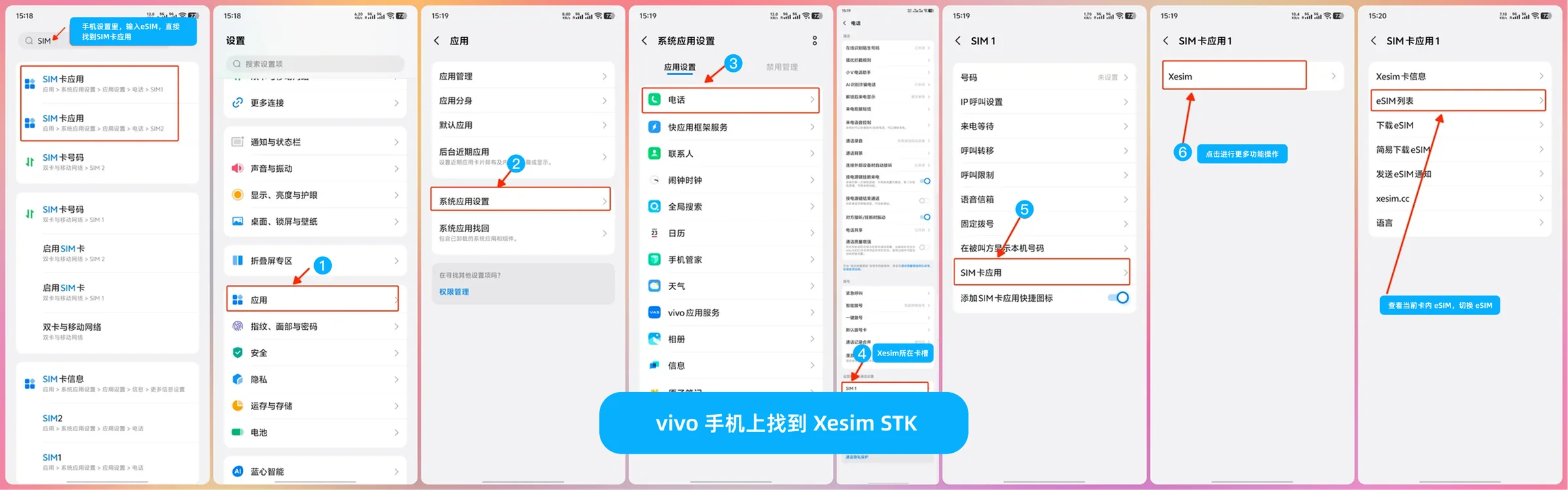
VIVO 手机查找 SIM 卡应用的截图
VIVO 手机:设置搜索「SIM」或 设置 → 应用 → 电话 → SIM 卡应用 → Xesimvivo: search “SIM” in Settings, or Settings → Apps → Phone → SIM card applications → Xesim

找到 Xesim STK 后,操作方法同 iPhone 下载 eSIM 部分。Once you've found Xesim STK, follow the iPhone eSIM download steps.

操作教程Guide

华为鸿蒙手机操作教程Huawei HarmonyOS guide

X7 蓝牙卡请看专属教程X7 adapter: see its own guide ↗ 华为鸿蒙系统用户Huawei HarmonyOS users X1 / X2 / X2 Pro
X7 蓝牙卡支持通过 Xesim App 直接管理卡片及 eSIM(鸿蒙 5.X 及以后通过华为「卓易通」安装 App),请看 X7 使用教程。本页为 X1 / X2 / X2 Pro 的操作方式。 The X7 Bluetooth eSIM Adapter lets you manage the card and its eSIMs directly in the Xesim app (on HarmonyOS 5.X and later, install the app via Huawei's Zhuoyitong) — see the X7 guide. This guide covers X1 / X2 / X2 Pro.

先判断你的鸿蒙版本Check your HarmonyOS version

  • 鸿蒙 OS 1.x ~ 4.x:系统为 Android 架构,请看 Android Xesim App 使用教程HarmonyOS 1.x–4.x: built on Android — follow the Android Xesim app guide
  • 鸿蒙 OS 5.x / 6.x:插入 Xesim 卡后使用 Xesim STK 操作,方法同 iPhone,按下面步骤进行HarmonyOS 5.x / 6.x: insert the Xesim card and use Xesim STK, the same way as on iPhone — follow the steps below

鸿蒙 5.x / 6.x:下载 eSIMHarmonyOS 5.x / 6.x: download an eSIM

  1. 将 Xesim 卡插入手机Insert the Xesim card into your phone
  2. 在手机上找到 Xesim STK 入口(菜单默认是英文,可先按下方说明切换为中文)Find the Xesim STK entry on your phone
  3. 按下方图文步骤下载 eSIM(确认码等说明同 iPhone 教程)Download the eSIM with the illustrated steps below (confirmation codes and other notes are the same as in the iPhone guide)
Xesim STK 菜单是英文?切换为中文5 步▸

Xesim STK 菜单默认是英文。进入 Xesim STK 后,点击「Language」,选择「Chinese (Simplified)」即可切换为简体中文,之后的菜单都会显示中文。
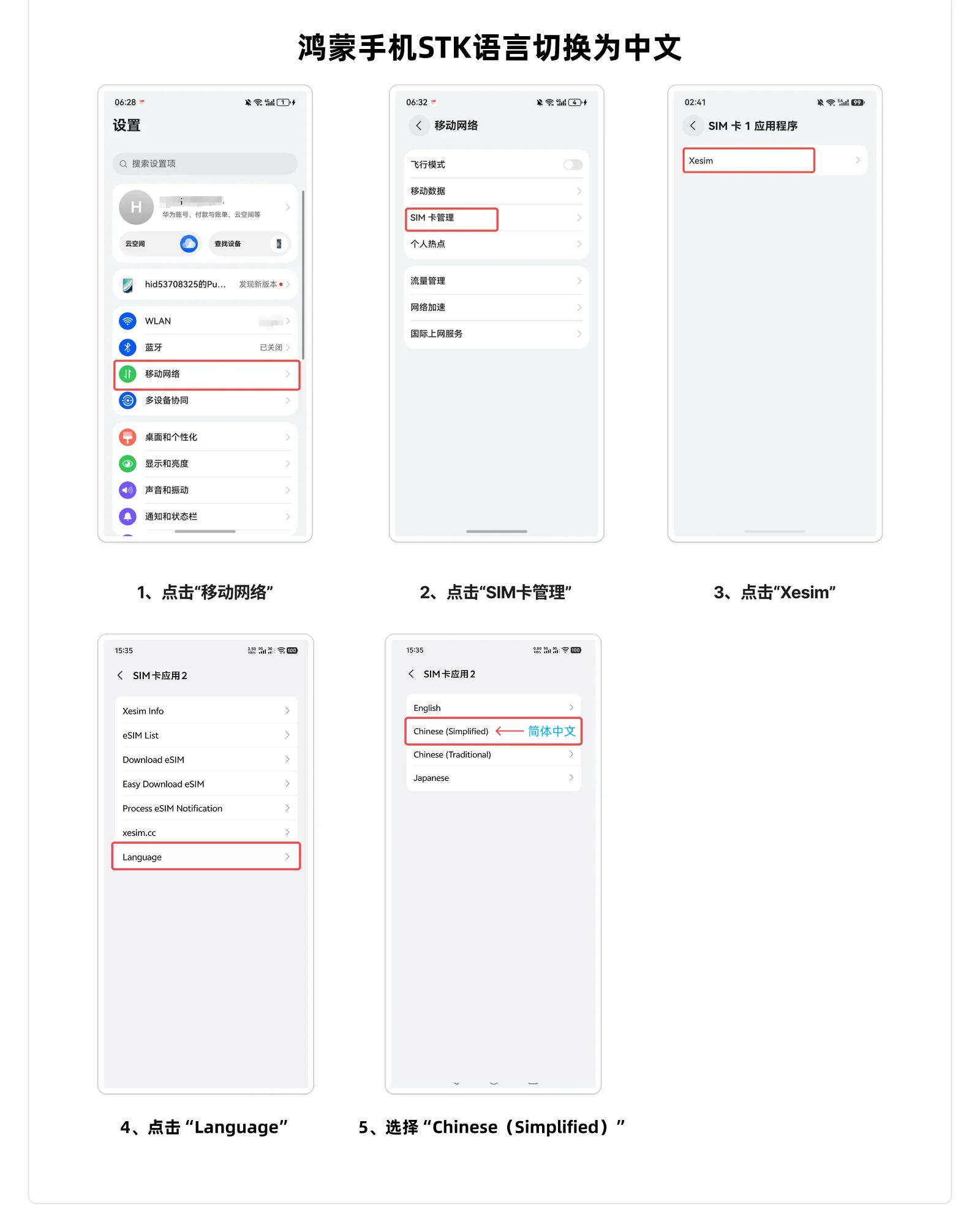
鸿蒙手机将 Xesim STK 菜单切换为中文的 5 步截图
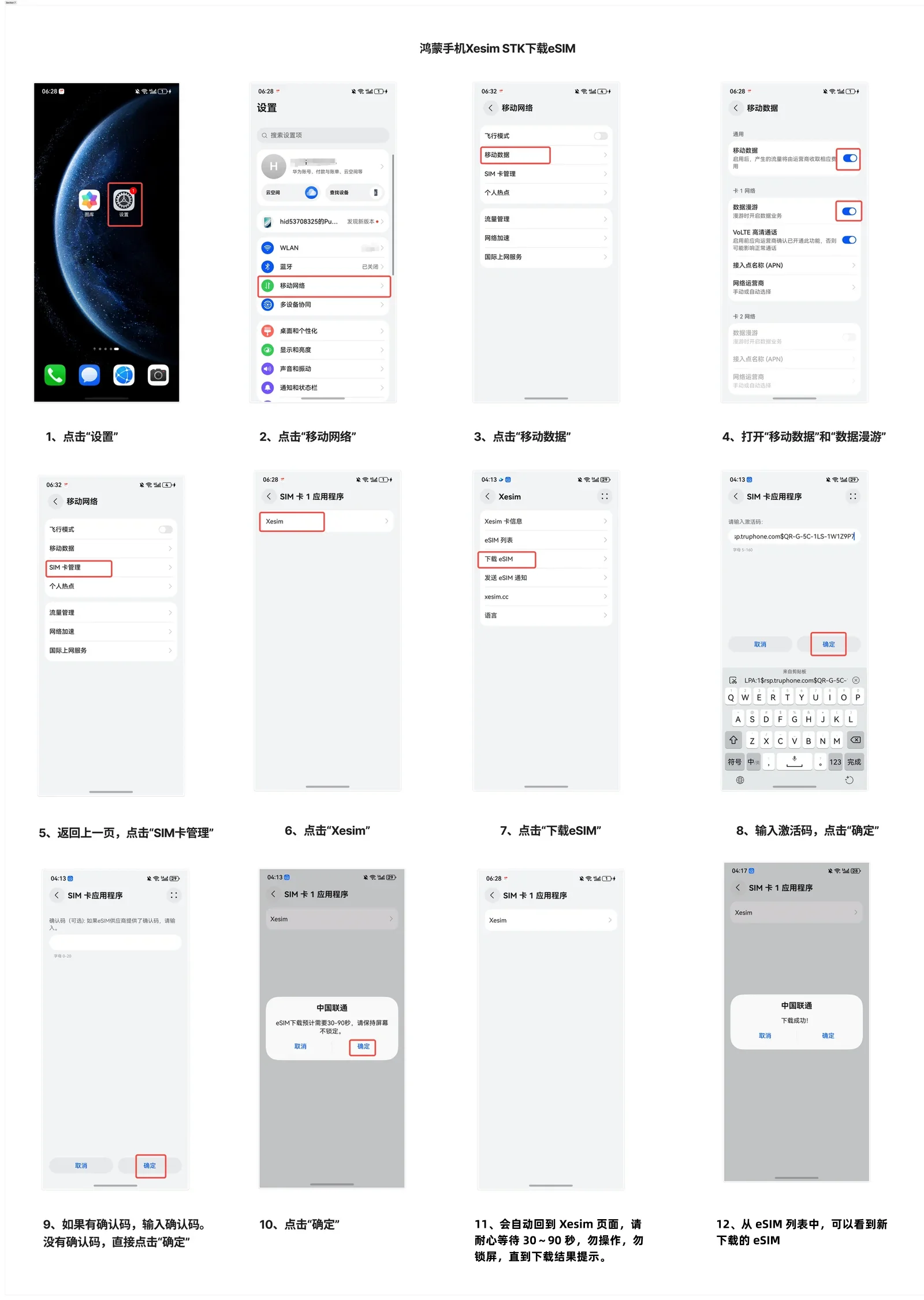
STK 切换中文:移动网络 → SIM 卡管理 → Xesim → Language → Chinese (Simplified)
华为鸿蒙手机的 Xesim STK 入口与 iPhone 不同,但操作方法完全相同。On Huawei HarmonyOS phones the Xesim STK entry is in a different place from iPhone, but the steps are exactly the same.
鸿蒙手机通过 Xesim STK 下载 eSIM 的 12 步截图
鸿蒙手机 Xesim STK 下载 eSIM 全流程(12 步):设置 → 移动网络 → 移动数据 → SIM 卡管理 → XesimHarmonyOS, download with Xesim STK, full flow (12 steps): Settings → Mobile network → Mobile data → SIM management → Xesim

下载前同样需要:启用 SeedLink 或有流量的 eSIM、打开数据漫游、关闭 VPN。遇到问题查看 排错指南。Before downloading you also need to: enable SeedLink or an eSIM with data, turn on Data Roaming and turn off any VPN. Having trouble? See troubleshooting.

eSIM 的日常管理Everyday eSIM management

以下操作都在 设置 → 移动网络 → SIM 卡管理 → Xesim 中完成,点击展开查看图文步骤。All of these are done in Settings → Mobile network → SIM management → Xesim. Tap a topic to see the illustrated steps.

启用 / 切换 eSIMEnable / switch eSIMs6 步6 steps▸

进入 Xesim 卡信息,点击要启用的 eSIM,选择「启用 eSIM」,再点「确定」即可。Open the Xesim card info, tap the eSIM you want, choose “Enable eSIM”, then tap “OK”.
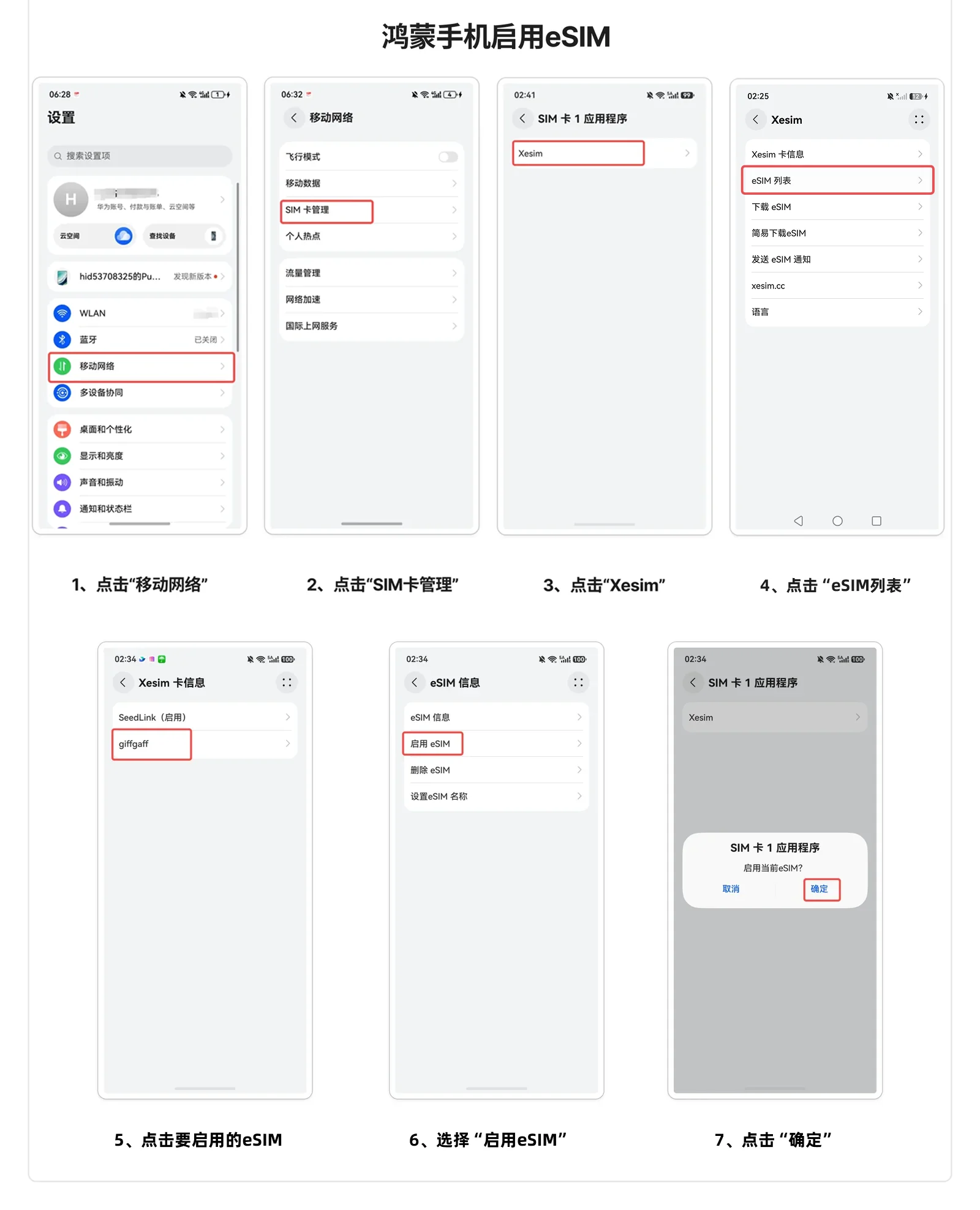
鸿蒙手机启用 eSIM 的 6 步截图
启用 eSIM:移动网络 → SIM 卡管理 → Xesim → 选择 eSIM → 启用 eSIM → 确定Enable eSIM: Mobile network → SIM management → Xesim → pick the eSIM → Enable eSIM → OK
禁用 eSIMDisable an eSIM6 步6 steps▸

进入 Xesim 卡信息,点击要禁用的 eSIM,选择「禁用 eSIM」,再点「确定」。Open the Xesim card info, tap the eSIM to disable, choose “Disable eSIM”, then tap “OK”.
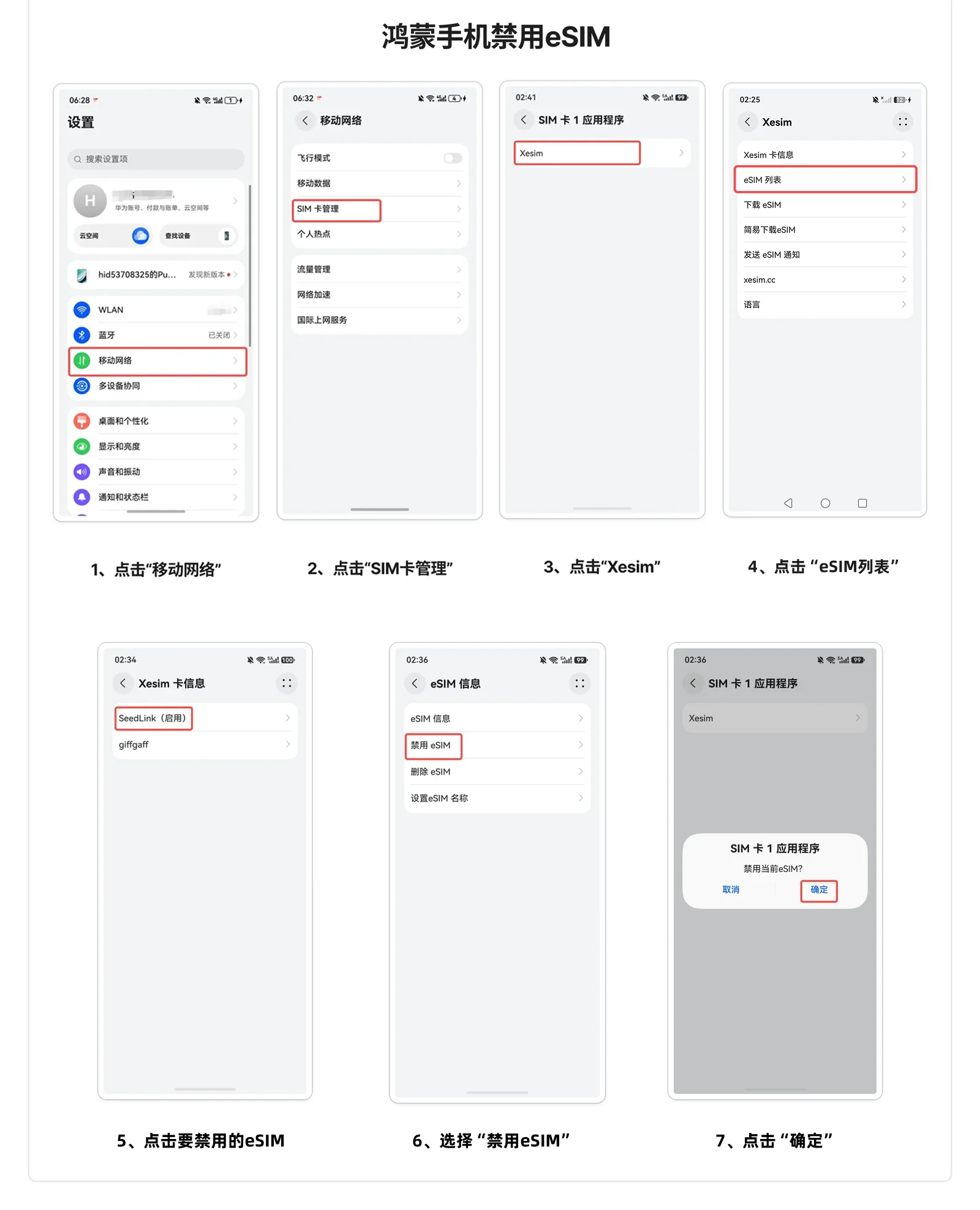
鸿蒙手机禁用 eSIM 的 6 步截图
禁用 eSIM:移动网络 → SIM 卡管理 → Xesim → 选择 eSIM → 禁用 eSIM → 确定Disable eSIM: Mobile network → SIM management → Xesim → pick the eSIM → Disable eSIM → OK
删除 eSIM(慎重操作)Delete an eSIM (be careful)6 步6 steps▸
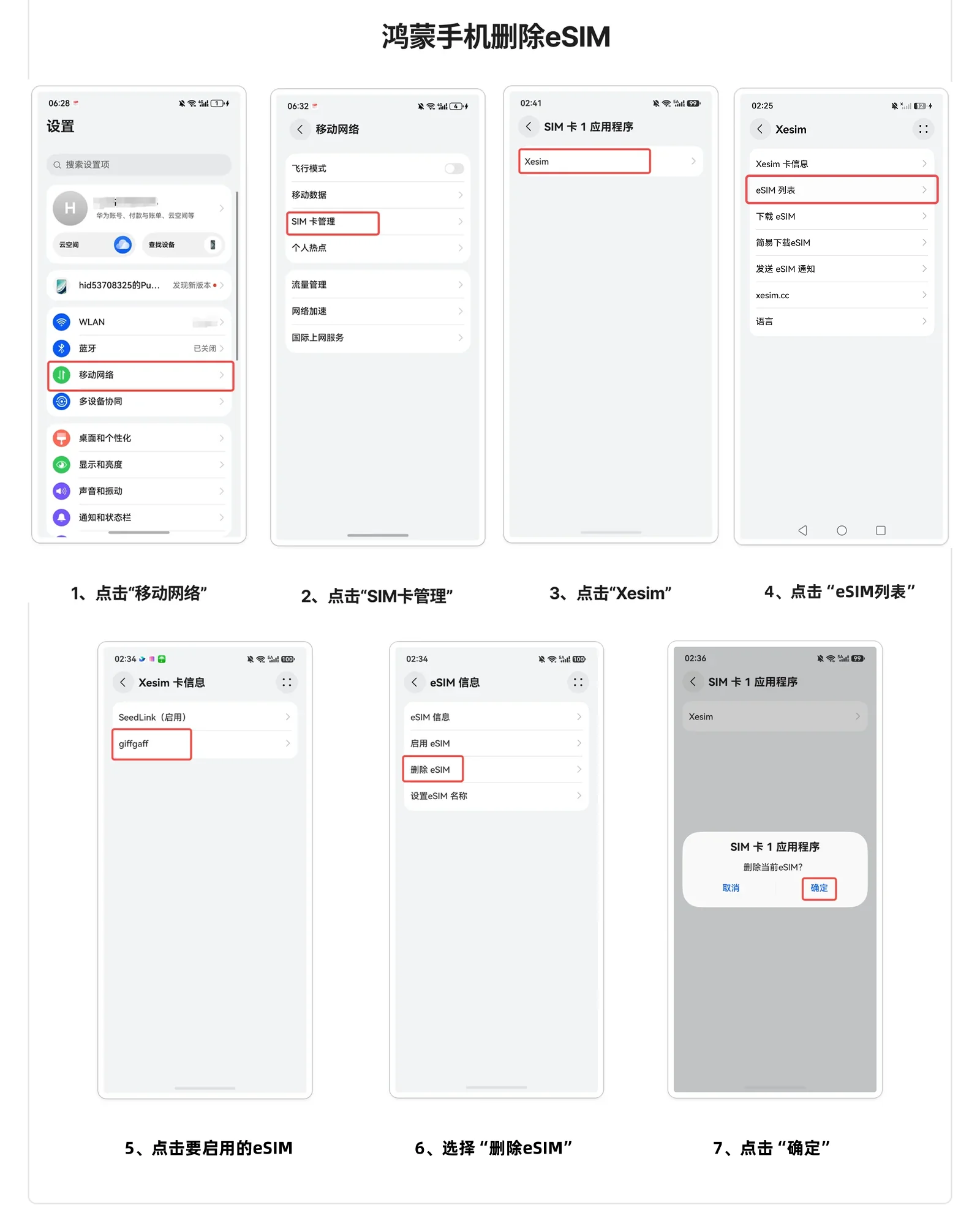
大部分供应商的 eSIM 二维码只能下载一次,一旦删除无法再次下载。确认不再使用后再删除。同时切记不要删除 SeedLink。 With most providers, an eSIM QR code can be downloaded only once — once deleted, it can't be downloaded again. Only delete eSIMs you're sure you won't use. And never delete SeedLink.
鸿蒙手机删除 eSIM 的 6 步截图
删除 eSIM:移动网络 → SIM 卡管理 → Xesim → 选择 eSIM → 删除 eSIM → 确定Delete eSIM: Mobile network → SIM management → Xesim → pick the eSIM → Delete eSIM → OK
备注 eSIM(设置名称)Name an eSIM5 步5 steps▸

同一供应商的多个 eSIM 名字可能一样,不好区分。建议用备注功能给每个 eSIM 取个自己能记住的名字(支持字母和数字),方便管理。Several eSIMs from the same provider may share a name, which makes them hard to tell apart. Give each one a name you'll recognise (letters and numbers supported).
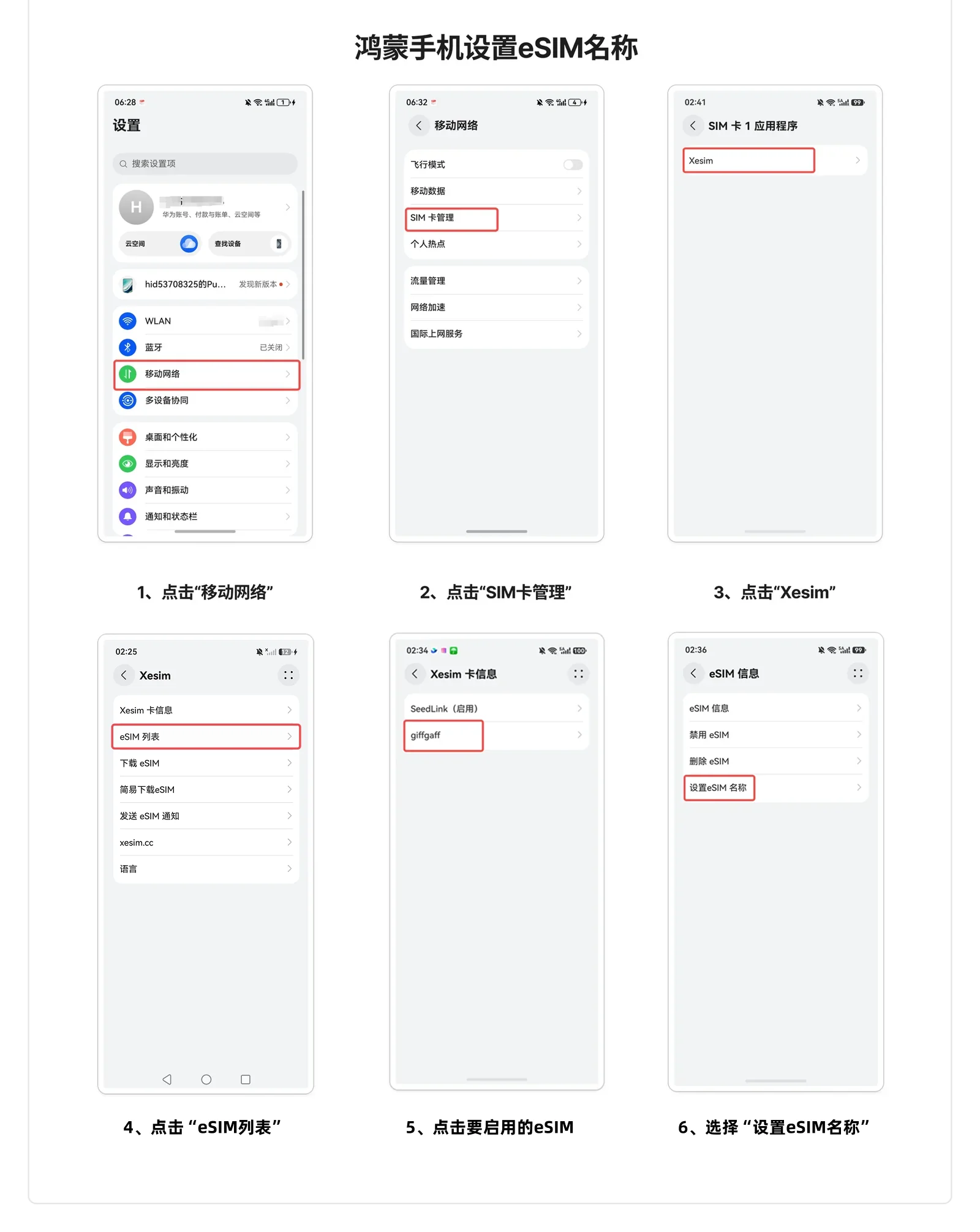

鸿蒙手机设置 eSIM 名称的 5 步截图
备注 eSIM:移动网络 → SIM 卡管理 → Xesim → 选择 eSIM → 设置 eSIM 名称Name an eSIM: Mobile network → SIM management → Xesim → pick the eSIM → Set eSIM Name
遇到问题Having trouble?

下载失败怎么办?Download failed?

下载前请先确保 eSIM 二维码 / 激活码有效可用(从未被下载过,且在有效期内)。以下是常见错误及解决方法:Before downloading, make sure the eSIM QR / activation code is valid (never downloaded before and not expired). Common errors and fixes:

提示无网络连接“No network connection”
  • 检查 SeedLink 或有流量 eSIM 是否已启用
  • 检查数据漫游开关是否已打开、关闭 VPN
  • 确认当前启用的 eSIM 是否有可用流量
  • Check that SeedLink or an eSIM with data is enabled
  • Check that Data Roaming is on and any VPN is off
  • Make sure the enabled eSIM has data left
S811R38
  • eSIM 码不可用,可能已被下载过或已被供应商提前绑定了 EID
  • 请联系 eSIM 供应商重新提供,或请供应商重新配置 eSIM
  • The eSIM code can't be used — it may have been downloaded already, or the provider bound it to an EID in advance
  • Ask your eSIM provider for a new code, or to reconfigure the eSIM
S82R12
  • eSIM 码不可用,或者之前下载的 eSIM 还没被删除
  • 请 eSIM 供应商重新提供,或请供应商重新配置 eSIM
  • The eSIM code can't be used, or a previously downloaded copy hasn't been deleted
  • Ask your eSIM provider for a new code, or to reconfigure the eSIM
S827R38
  • 确认码不正确(如果该 eSIM 需要确认码的话)
  • 重新下载,确保输入的确认码正确无误
  • Wrong confirmation code (if this eSIM needs one)
  • Download again and make sure the confirmation code is correct
提示 undefine“undefine”
  • 打开数据漫游,重启手机,重新下载
  • Turn on Data Roaming, restart the phone and download again
常见问题Questions

FAQ

我的是 X7 蓝牙卡,看哪个教程?I have an X7 Bluetooth eSIM Adapter — which guide do I use?▸

X7 蓝牙卡支持通过 Xesim App 直接管理卡片及 eSIM,操作步骤请看 X7 使用教程。本页教程适用于 X1 / X2 / X2 Pro。The X7 Bluetooth eSIM Adapter lets you manage the card and its eSIMs directly in the Xesim app — see the X7 guide for the steps. This guide covers X1 / X2 / X2 Pro.

什么是 eSIM?和普通 SIM 卡有什么区别?What is an eSIM, and how is it different from a regular SIM?▸

eSIM 是嵌入式 SIM 卡,不需要插入物理卡就能连接移动网络。Xesim 卡的作用就是让原本不支持 eSIM 的手机也能使用 eSIM 功能。An eSIM is an embedded SIM that connects to mobile networks without a physical card. A Xesim card lets phones without eSIM support use eSIMs too.

我的手机能用 Xesim 吗?Will Xesim work with my phone?▸

只要你的手机有 SIM 卡槽,插入 Xesim 卡就能用。具体操作请参考对应你手机类型的教程。If your phone has a SIM card slot, just insert the Xesim card. See the guide for your phone type for the steps.

eSIM 激活码在哪里找?Where do I find my eSIM activation code?▸

购买 eSIM 套餐后,eSIM 供应商会提供 eSIM 二维码或激活码(LPA 开头的字符串)。After you buy an eSIM plan, the eSIM provider gives you an eSIM QR code or activation code (a string starting with LPA).

下载 eSIM 时提示无网络连接怎么办?It says “No network connection” when I download — what now?▸

请确保已启用 SeedLink 并打开数据漫游开关,关掉 VPN 和科学上网工具,然后重试。Make sure SeedLink is enabled and Data Roaming is on, turn off any VPN or proxy tools, then try again.

eSIM 套餐可以换手机用吗?Can I move my eSIM plans to another phone?▸

已下载到 Xesim 卡中的 eSIM 随卡走。换手机时把 Xesim 卡插到新手机即可继续使用。eSIMs downloaded to your Xesim card stay on the card. Put the card in your new phone and keep using them.

Xesim 卡插进去没反应怎么办?Nothing happens when I insert the Xesim card — what should I do?▸

请确认卡的插入方向是否正确,重启手机试试。如果仍然无反应,请联系客服处理。Check the card is inserted the right way round and restart your phone. If there's still no response, contact support.

后续指引What's next

接下来Next steps

遇到问题Need help?

联系官网在线客服:进入官网首页,点击右下角客服头像,即可联系在线客服Contact online support: open the xesim.cc homepage and tap the support avatar in the bottom-right corner to chat with us.

购买 eSIM 套餐Buy eSIM plans

前往 eSIM 供应商官网或品牌渠道购买Buy from an eSIM provider's website or other brand channels.

关注我们Follow us

扫码关注 Xesim 公众号,获取最新产品资讯和使用技巧Follow Xesim on X for the latest product news and tips.

Xesim 微信公众号二维码 @xesimcc